Back to FS2004 SDK Overview

Microsoft
Flight Simulator 2004:
A Century of Flight
Software Development Kit
© 2003 Microsoft Corporation. All rights reserved.
Discreet and gmax are trademarks of Discreet Logic Inc./Autodesk, Inc., in the U.S.A.
and/or other countries.
MakeMDL
November 2003

Microsoft Flight Simulator 2002 SDK MakeMDL
Contents
MakeMDL...........................................................................................................................1
November 2003...................................................................................................................1
Contents..............................................................................................................................2
Introduction........................................................................................................................3
Running MakeMDL.exe.....................................................................................................4
Running MakeMDL from the Command Line.................................................................9
Part and Material Names Recognized by MakeMDL.......................................................9
Appendix...........................................................................................................................22
© 2002 Microsoft Corporation. All rights reserved. Page 2 of 25

Microsoft Flight Simulator 2002 SDK MakeMDL
Introduction
MakeMDL
MakeMDL (MakeMDL.exe) is a program that converts the 3-D models you create with
modeling tools, such as gmax, into scenery or aircraft objects that can be used by
Microsoft
®
Flight Simulator 2004.
The method you use to run MakeMDL depends on your modeling tool:
• If you use gmax, use the MakeMDL plug-in from within gmax to export .bgl
(scenery) or .mdl (aircraft) files.
• If you use modeling tools that export .x files, use MakeMDL as a stand-alone
application and run it from either the command line or the MakeMDL.exe file.
This document explains how to run MakeMDL from the command line, as a Microsoft
Windows application, and from gmax. In addition, it provides several tables that list the
part names you can use to make your 3-D model compatible with Flight Simulator 2004.
Changes
There have been some changes made from previous versions of MakeMDL.
1. All models exported from MakeMDL now have .MDL as an extension. Make
sure you don’t confuse aircraft and scenery .MDL files.
2. Due to changes in the process for building scenery (see the BGLComp SDK),
there is no longer a need to specify a Lat/Lon/Alt for scenery objects. A
sample .XML file will be output when MakeMDL is run from GMax that can be
modified and then compiled to place exported object in the scene. Another major
change is that support for per-part LOD is being phased out of Flight Simulator.
3. You shouldn’t use per-part LODs in future models. MakeMDL reports a warning
if a model appears to have per-part LOD. We recommend you modify all models
that have per-part LOD. See the Gmax_Aircraft and Gmax_Scenery SDKs for
more information on LODs.
4. For MakeMDL to operate properly, MSXML 4 must be installed on your system.
MSXML 4 can be found on the web site: http://www.microsoft.com.
© 2002 Microsoft Corporation. All rights reserved. Page 3 of 25
Microsoft Flight Simulator 2002 SDK MakeMDL
Running MakeMDL.exe
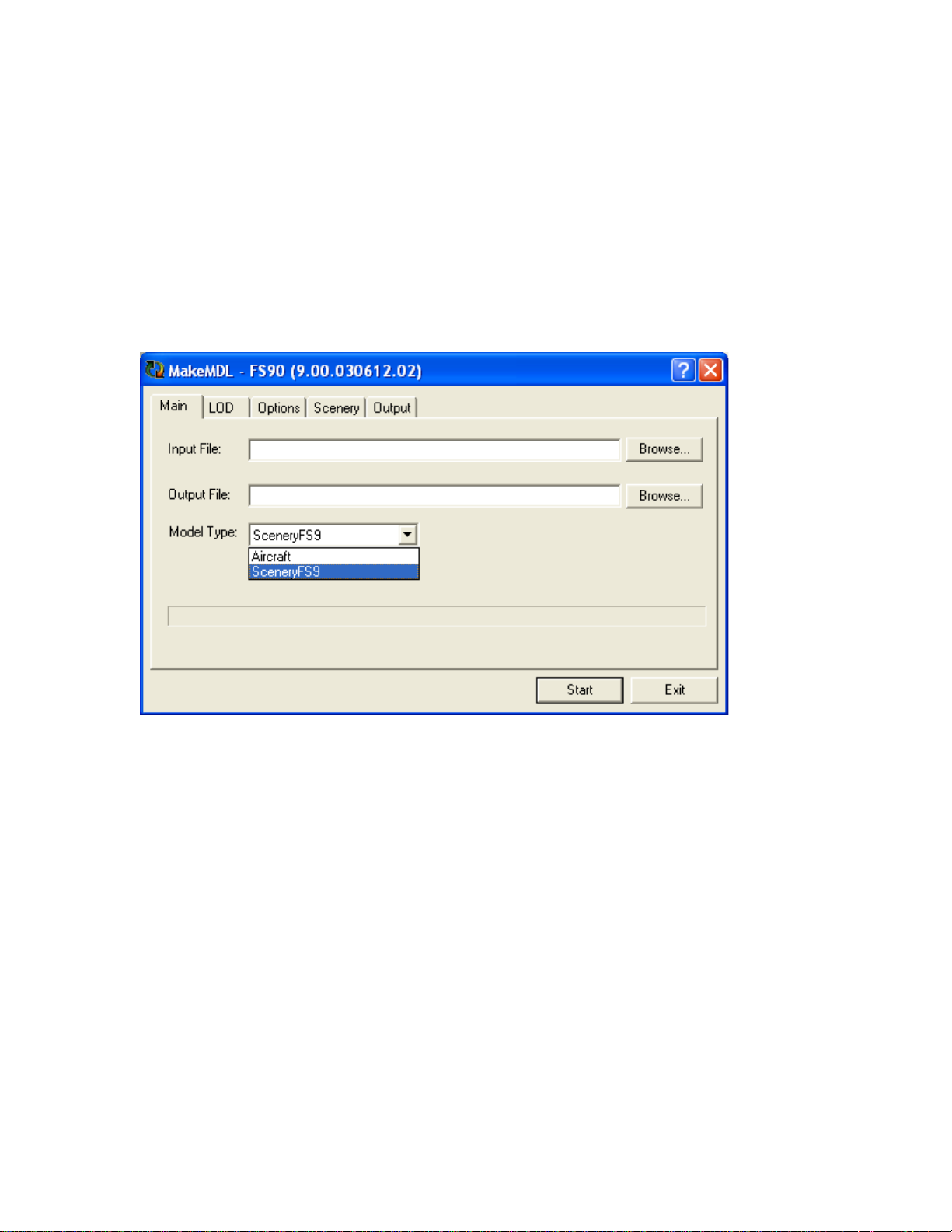
The MakeMDL user interface contains five tabs: Main, LOD, Options, Scenery, and
Output. The purpose and use of the controls on each tab is described in the following
sections.
Main Tab
Using the Main tab, you can select the input file, and the output file, and the type of
model to generate.
© 2002 Microsoft Corporation. All rights reserved. Page 4 of 25
Microsoft Flight Simulator 2002 SDK MakeMDL
The following table describes the purpose and use of the controls on the Main tab.
Controls on the Main tab Description
Input File box Name of the input file (.x file). The file name has the following form:
Base_Name[_TYPE][_LOD][_A-Z].x
Where:
• [_TYPE] is the model type. Use “_interior” for virtual cockpit
(VC) models and “_shadow” for shadow models.
• [_LOD] is the model LOD. LOD (level of detail) is a three-
digit number from 000-400.
• [_A-Z] is ignored.
Output File box Name of the output .mdl or .bgl file.
Model Type box Type of model to generate. There are two options:
Aircraft: Generates an .mdl file to be used as an aircraft.
Scenery: Generates a .bgl scenery file.
Start button Generates the model.
Exit button Exits the MakeMDL program without generating anything.
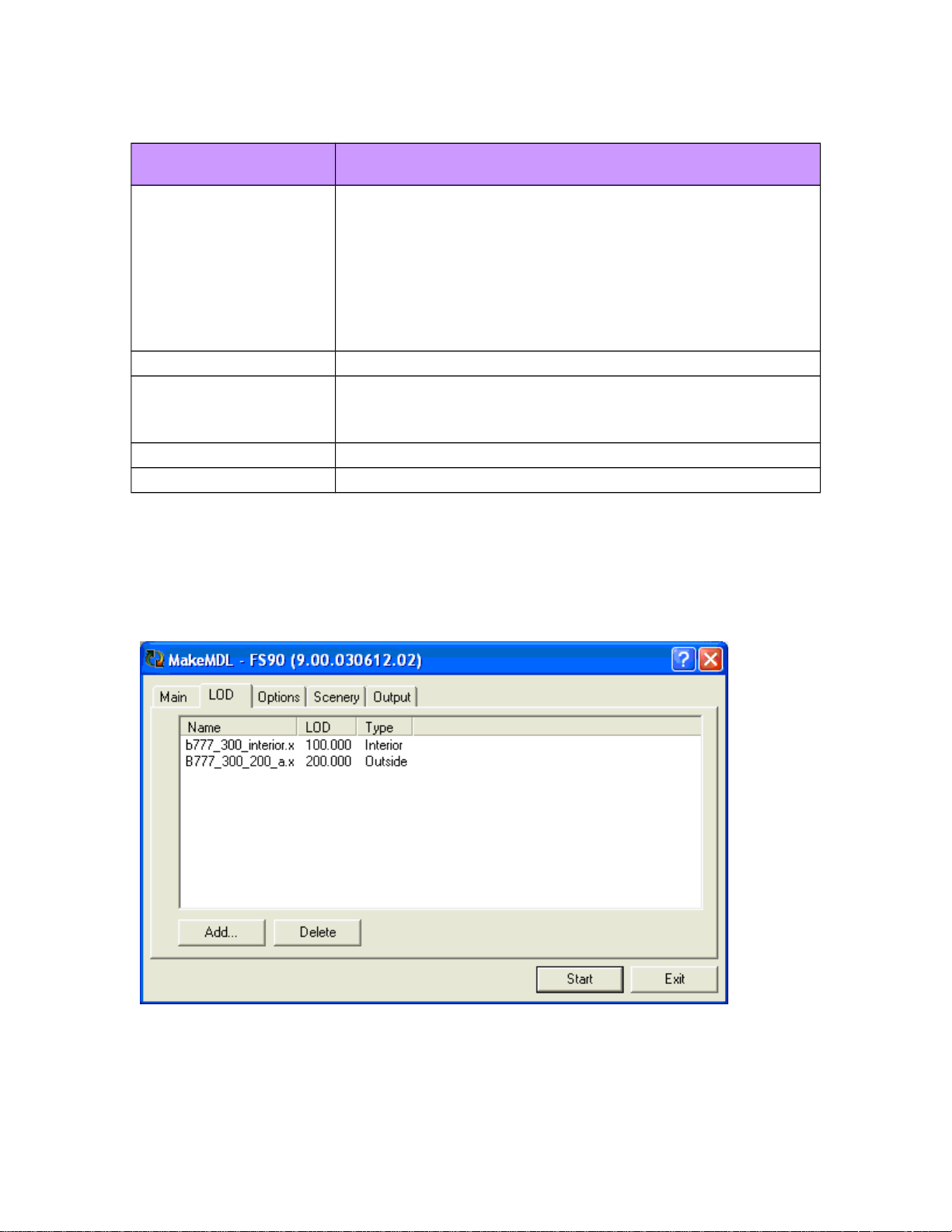
LOD Tab
Using the LOD tab, you can add or delete .x files that represent different level-of-detail
(LOD) versions of the model. You can also add or remove shadow and virtual cockpit
models. For information about input file naming conventions, see the “Main tab” section
of this document.
© 2002 Microsoft Corporation. All rights reserved. Page 5 of 25
Microsoft Flight Simulator 2002 SDK MakeMDL
The following table describes the purpose and use of the controls on the LOD tab.
Controls on the LOC tab Description
Add button Opens a dialog box to allow you to select an .x file.
If the file name ends with:
• [A-Z]: this part of the file name is ignored.
• _interior: the file is assumed to be the VC model.
• _shadow: the file is assumed to be the shadow model.
• _###: the ### is used as the LOD value. The LOD value
ranges from 000 – 400 and is the pixel size on screen that
determines when this model should be used.
Delete button Deletes the selected .x file.
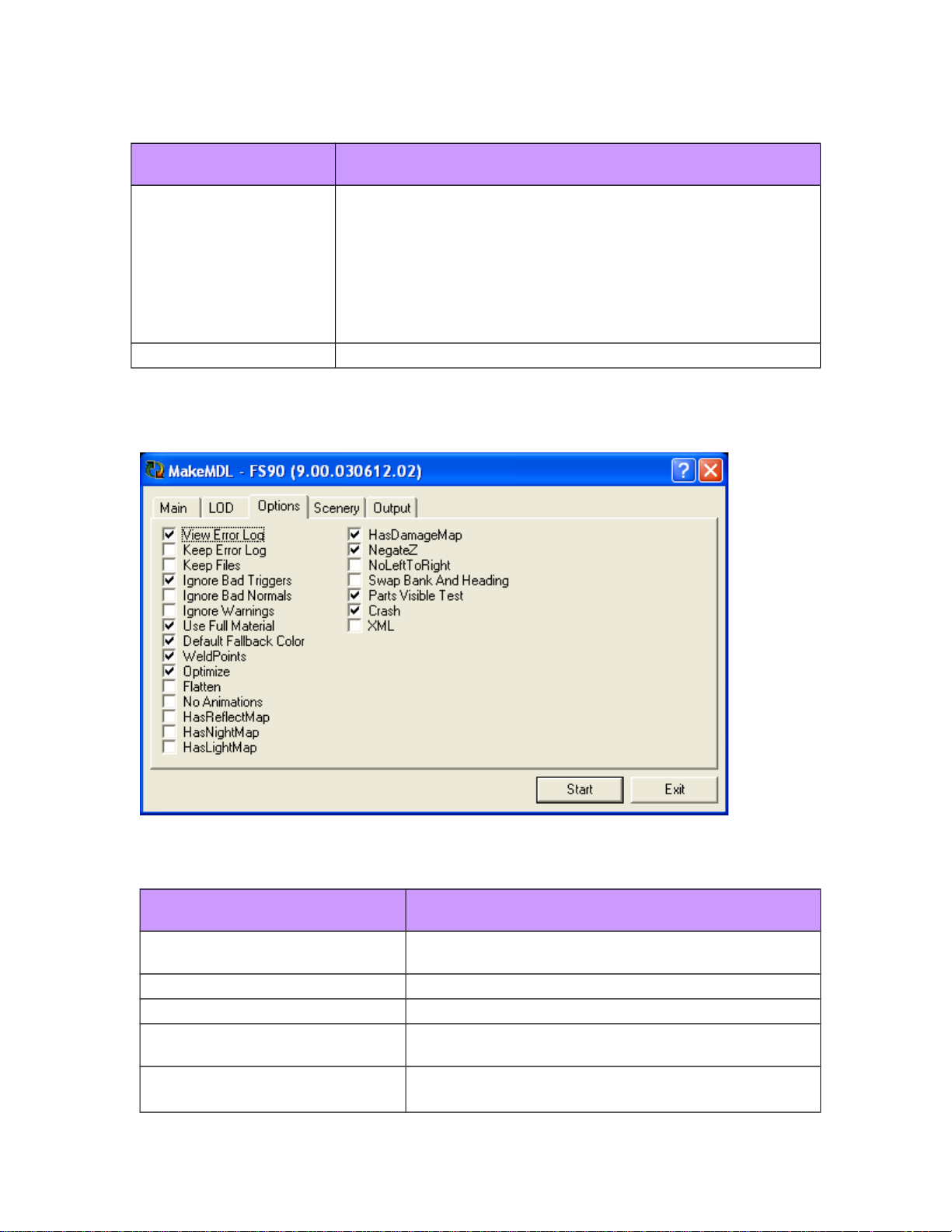
Options Tab
Using the Options tab, you can change the default options used by MakeMDL.
The following table describes the default options available on the Options tab.
Check boxes on the Options tab Action if check box is selected
View Error Log Create an error log if an error occurs. (Use Microsoft
Notepad to view the error log.)
Keep Error Log Do not delete the error log on success.
Keep Files Do not delete the intermediate .asm files.
Ignore Bad Triggers Do not generate a fatal error for an animation with an
unknown name.
Ignore Bad Normals Do not generate a fatal error for a bad normal.
© 2002 Microsoft Corporation. All rights reserved. Page 6 of 25
Microsoft Flight Simulator 2002 SDK MakeMDL
Check boxes on the Options tab Action if check box is selected
Ignore Warnings Do not treat a warning as a fatal error.
Use Full Material Use all of the attributes of the material color from the 3-D
file (otherwise only use diffuse).
Default Fallback Color Generate a default fallback color and ignore the material
color.
Weld Points Treat all points that are within 4mm of each other as the
same point.
Optimize Perform optimizations.
Flatten Flatten the input file to a single mesh.
No Animations Ignore all animations.
HasReflectMap Assume any texture that ends with “_T” has a reflection
map. See How to Use Materials in gmax for information
about specifying a reflection map.
HasNightMap Assume any texture that ends with “_T” has a night map
(night map files end with “_LM”). See How to Use
Materials in gmax for information about specifying a night
map.
HasLightMap Assume any texture that ends with “_T” has a light map
(light map files end with “_L”). See How to Use Materials
in gmax for information about specifying a light map.
HasDamageMap Assume any texture that ends with “_T” has a damage
map (damage map files end with “_D”). The damage map
is used when the aircraft is damaged.
NegateZ Flip the z-axis on the input model.
NoLeftToRight Do not perform a left-hand to right-hand conversion on
the input model.
Swap Bank And Heading Exchange the meaning of bank and heading for stock
animations. This is the default setting.
Parts Visible Test Generate tests for parts_visible (Aircraft only).
Crash Generate a crash OctTree for this object.
XML Generate an XML sample placement file for this object.
© 2002 Microsoft Corporation. All rights reserved. Page 7 of 25
Microsoft Flight Simulator 2002 SDK MakeMDL
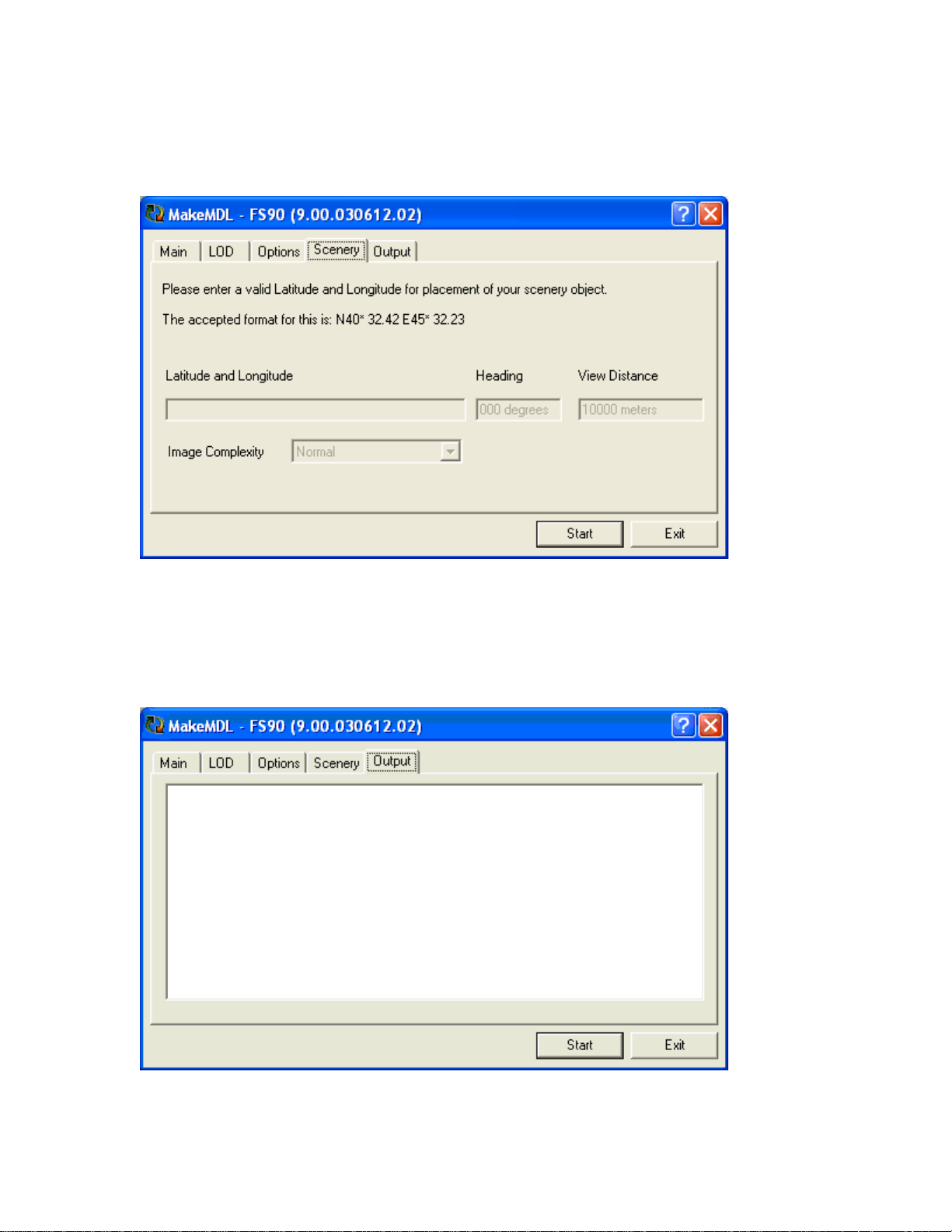
Scenery Tab
The Scenery tab is no longer used in MakeMDL.
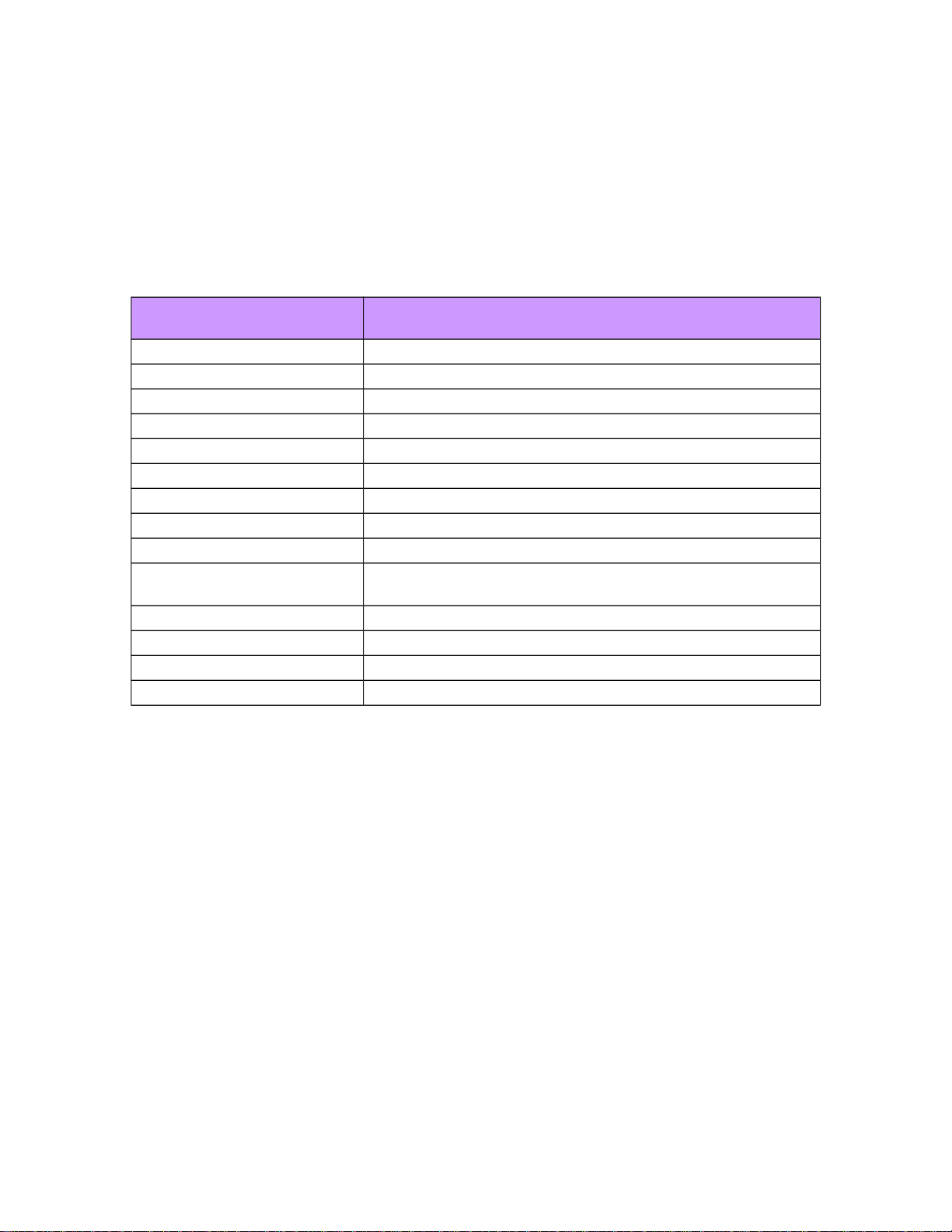
Output Tab
The Output tab displays all status and error messages. These messages are also written to
<Base_Name>.log.
© 2002 Microsoft Corporation. All rights reserved. Page 8 of 25
Microsoft Flight Simulator 2002 SDK MakeMDL
Running MakeMDL from the Command
Line
To run MakeMDL from the command line, use the following syntax:
• MakeMDL [options] input_file.x
Where options include those listed in the following table.
Command line options Description
/OUT:output_file
Define the name of the output file.
/BATCH
Generate the model and exit.
/ts
Generate scenery.
/ta
Generate aircraft.
/CRASH-
Disable the generation of a crash tree.
/VIS-
Disable the parts_visible tests.
/NightMap
Assume a night texture exists (file ends with “_LM”).
/ReflectMap
Assume a reflect map in alpha (file ends with “_T”).
/LightMap
Assume a light map exists (file ends with “_L”).
/DamageMap
Assume a damage map exists (file ends with “_D”). Default for
aircraft.
/NightMap-
Assume no night texture exists.
/ReflectMap-
Assume no reflect map exists.
/DamageMap-
Assume no damage map exists.
/LightMap-
Assume no light map exists.
Part and Material Names Recognized by
MakeMDL
MakeMDL recognizes special part and material names, which can be used within 3-D
modeling programs. The following sections describe these special names and how parts
designated with those names will be handled in Flight Simulator under various
conditions, such as when the associated aircraft part is visible, not visible, or damaged.
Note The part name is the portion of the name that remains after any trailing numbers
(_###) are removed. For example, the parts named pilot and pilot_7 are considered the
same aircraft part (PILOT).
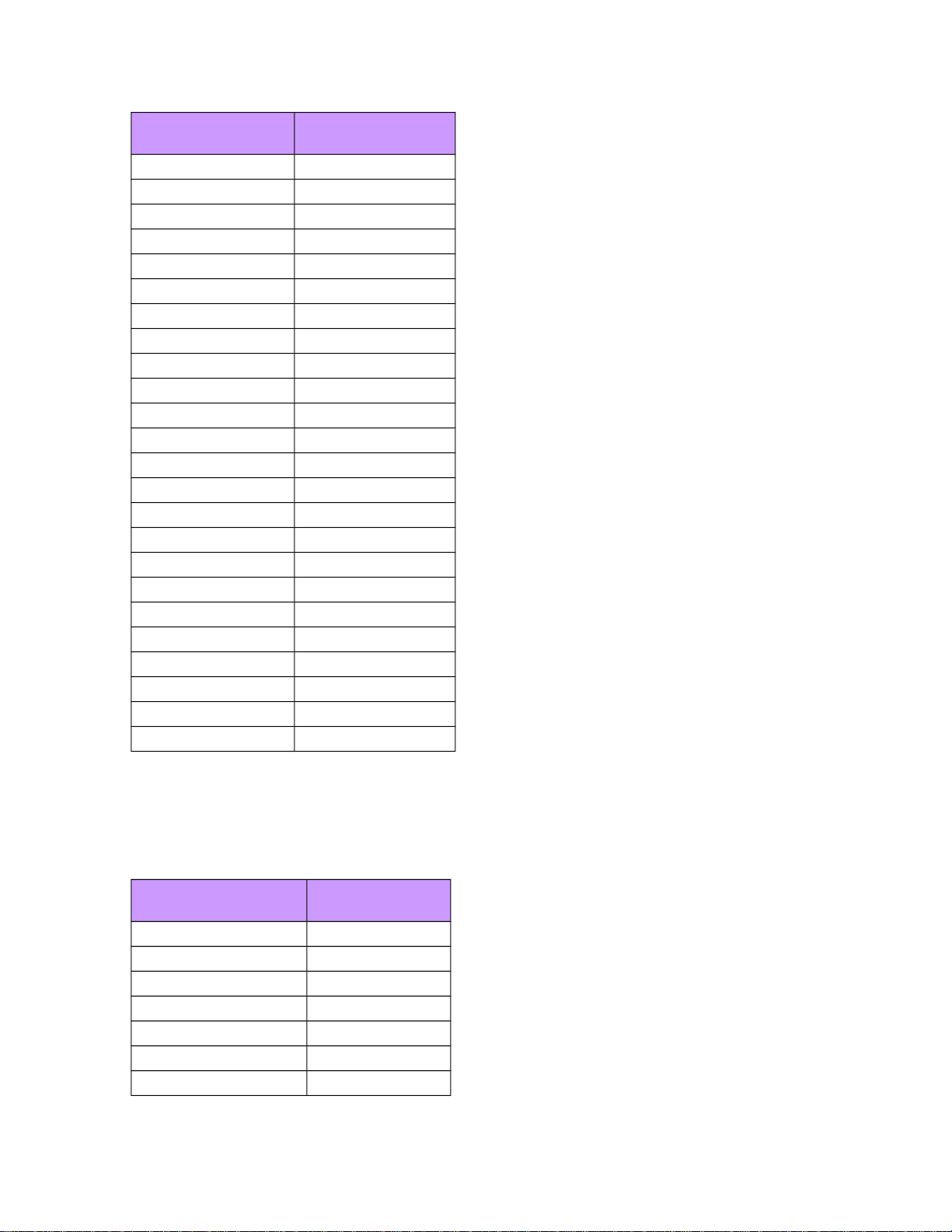
Part Names (Aircraft Only)
Any part with a part name from the following table will be visible only if the associated
aircraft part is also visible.
© 2002 Microsoft Corporation. All rights reserved. Page 9 of 25
Microsoft Flight Simulator 2002 SDK MakeMDL
Part name Aircraft part
pilot PILOT
l_wing LEFTWING
r_wing RIGHTWING
l_wingfold LEFTWING
r_wingfold RIGHTWING
l_wing_tip LEFTWINGTIP
r_wing_tip RIGHTWINGTIP
l_wingtip LEFTWINGTIP
r_wingtip RIGHTWINGTIP
lwingtip LEFTWINGTIP
rwingtip RIGHTWINGTIP
tail TAIL
l_tail TAIL
r_tail TAIL
tail_l TAIL
tail_r TAIL
nose NOSE
nose1 NOSE
engine0 ENGINE0
engine1 ENGINE1
engine2 ENGINE2
engine3 ENGINE3
l_engine ENGINE1
r_engine ENGINE0
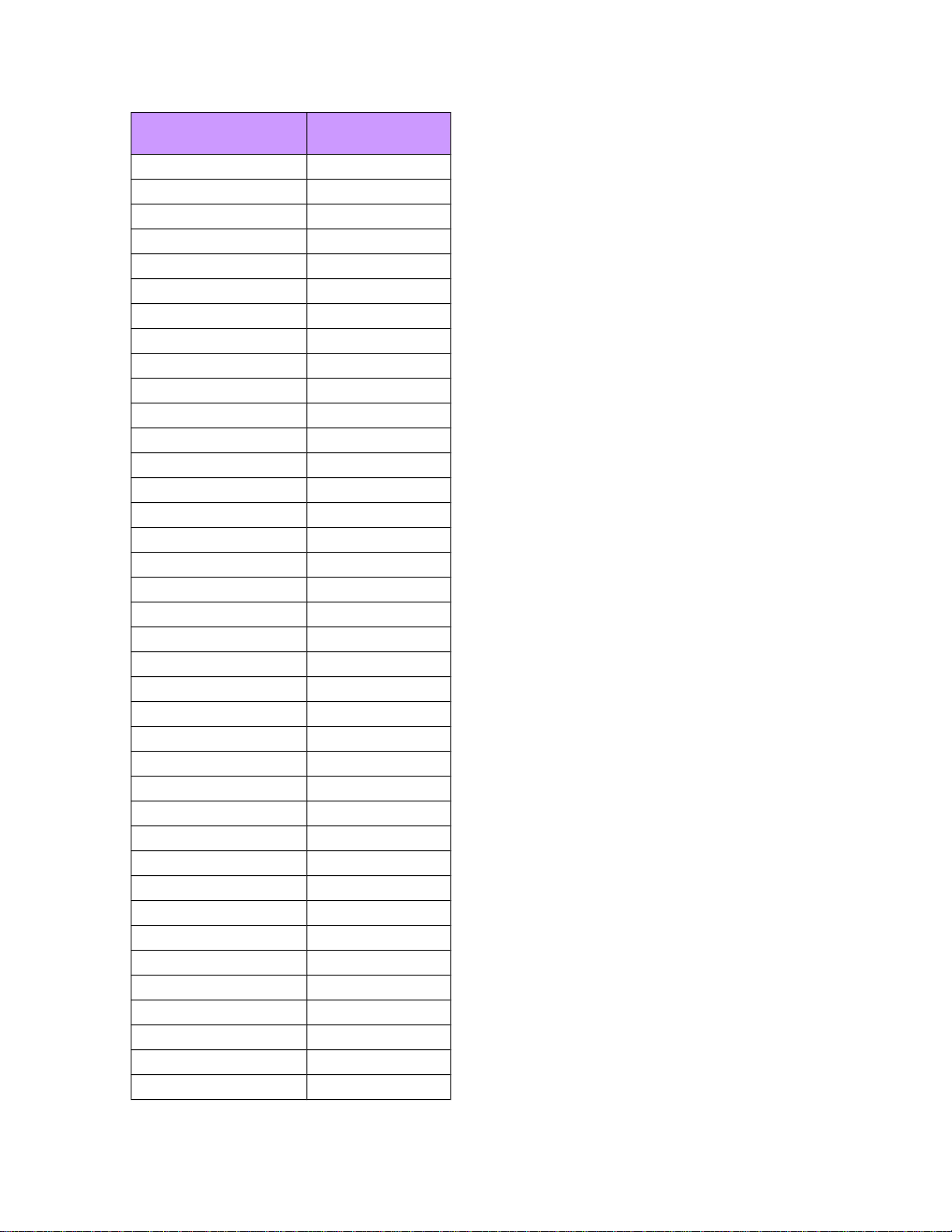
Endcap Names (Aircraft Only)
Any part with a part name from the following table is considered an “endcap” and is
visible only when the associated aircraft part is not visible (for example, the aircraft part
has fallen off of the aircraft).
Part name Aircraft part
endcap0_l_wing_tip LEFTWINGTIP
endcap1_l_wing_tip LEFTWINGTIP
endcap2_l_wing_tip LEFTWINGTIP
endcap0_r_wing_tip RIGHTWINGTIP
endcap1_r_wing_tip RIGHTWINGTIP
endcap2_r_wing_tip RIGHTWINGTIP
endcap0_lwingtip LEFTWINGTIP
© 2002 Microsoft Corporation. All rights reserved. Page 10 of 25
Microsoft Flight Simulator 2002 SDK MakeMDL
Part name Aircraft part
endcap1_lwingtip LEFTWINGTIP
endcap2_lwingtip LEFTWINGTIP
endcap0_rwingtip RIGHTWINGTIP
endcap1_rwingtip RIGHTWINGTIP
endcap2_rwingtip RIGHTWINGTIP
endcap0_l_wingtip LEFTWINGTIP
endcap1_l_wingtip LEFTWINGTIP
endcap2_l_wingtip LEFTWINGTIP
endcap0_r_wingtip RIGHTWINGTIP
endcap1_r_wingtip RIGHTWINGTIP
endcap2_r_wingtip RIGHTWINGTIP
endcap_tail TAIL
endcap0_tail TAIL
endcap1_tail TAIL
endcap2_tail TAIL
endcap0_nose NOSE
endcap1_nose NOSE
endcap2_nose NOSE
endcap0_engine0 ENGINE0
endcap1_engine0 ENGINE0
endcap2_engine0 ENGINE0
endcap0_engine1 ENGINE1
endcap1_engine1 ENGINE1
endcap2_engine1 ENGINE1
endcap0_engine2 ENGINE2
endcap1_engine2 ENGINE2
endcap2_engine2 ENGINE2
endcap0_engine3 ENGINE3
endcap1_engine3 ENGINE3
endcap2_engine3 ENGINE3
endcap_l_wing LEFTWING
endcap0_l_wing LEFTWING
endcap1_l_wing LEFTWING
endcap2_l_wing LEFTWING
endcap_r_wing RIGHTWING
endcap0_r_wing RIGHTWING
endcap1_r_wing RIGHTWING
endcap2_r_wing RIGHTWING
© 2002 Microsoft Corporation. All rights reserved. Page 11 of 25
Microsoft Flight Simulator 2002 SDK MakeMDL
Part name Aircraft part
endcap_lwing LEFTWING
endcap0_lwing LEFTWING
endcap1_lwing LEFTWING
endcap2_lwing LEFTWING
endcap_rwing RIGHTWING
endcap0_rwing RIGHTWING
endcap1_rwing RIGHTWING
endcap2_rwing RIGHTWING
© 2002 Microsoft Corporation. All rights reserved. Page 12 of 25
Microsoft Flight Simulator 2002 SDK MakeMDL
Damaged Texture Part Names (Aircraft Only)
Any part with a part name from the following table switches to being textured with the
damage texture if the associated aircraft part is not visible (for example, not attached to
the aircraft).
Note DamageMaps (damage textures) are valid only on aircraft models. The base texture
file must end with “_T” and the damage texture file must end with “_D” (for example,
MyTexture_D.bmp and MyTexture_T.bmp).
Part name Aircraft part
fuselage NOSE
fuselage_aft TAIL
l_ailer LEFTWINGTIP
l_aileron LEFTWINGTIP
l_wing LEFTWINGTIP
l_wingfold LEFTWINGTIP
r_ailer RIGHTWINGTIP
r_aileron RIGHTWINGTIP
r_wing RIGHTWINGTIP
r_wingfold RIGHTWINGTIP
cowl0 ENGINE0
cowl1 ENGINE1
cowl2 ENGINE2
cowl3 ENGINE3
R_cowling_B1 ENGINE0
R_cowling_A1 ENGINE1
R_cowling_A2 ENGINE2
R_cowling_B2 ENGINE3
horizontal LEFTHORIZONTAL
l_horizontal LEFTHORIZONTAL
r_horizontal RIGHTHORIZONTAL
elevator LEFTHORIZONTAL
l_elevator LEFTHORIZONTAL
r_elevator RIGHTHORIZONTAL
vertical VERTICAL
l_vertical VERTICAL
r_vertical RIGHTVERTICAL
rudder VERTICAL
l_rudder VERTICAL
r_rudder RIGHTVERTICAL
© 2002 Microsoft Corporation. All rights reserved. Page 13 of 25
Microsoft Flight Simulator 2002 SDK MakeMDL
Stock Animation Names (Aircraft and Scenery)
Any part with a part name from the following table automatically uses the corresponding
stock animation; you do not have to author a keyframe animation in the input file.
Part name Stock animation
Beacon2 Heading rotation is 17-second cycle at 3 hertz (Hz).
Beacon3 Heading rotation is 12-second cycle at 3 Hz.
Beacon4 Heading rotation 9.4-second cycle at 3 Hz.
Beacon5 Heading rotation 7.7-second cycle at 3 Hz.
Stock Animation Names (Aircraft Only)
Any part with a part name from the following table automatically uses the corresponding
stock animation; you do not have to author a keyframe animation in the input file.
Part name Stock animation description
l_aileron Pitch rotation is based on the aileron position.
r_aileron Pitch rotation is based on the right aileron position.
l_elevator Pitch rotation is based on the left elevator position.
r_elevator Pitch rotation is based on the left elevator position.
l_flap Pitch rotation is based on the left flap position.
r_flap Pitch rotation is based on the right flap position.
rudder Heading rotation is based on the rudder position.
trimtab Pitch rotation is based on the elevator trim tab position.
rudder_water_rotate Heading rotation is based on the rudder position.
c_tire_blurred Visible and rotating when the center tire’s rotational speed (in
revolutions per minute (rpm)) is fast.
l_tire_blurred Visible and rotating when the left tire’s rotational speed (in rpm) is fast.
r_tire_blurred Visible and rotating when the right tire’s rotational speed (in rpm) is
fast.
c_tire_still Visible and rotating when the center tire’s rotational speed (in rpm) is
very slow.
l_tire_still Visible and rotating when the left tire’s rotational speed (in rpm) is very
slow.
r_tire_still Visible and rotating when the right tire’s rotational speed (in rpm) is
very slow.
prop0_still Visible when prop 0 is very slow.
prop0_slow Visible when prop 0 is slow.
prop0_blurred Visible when prop 0 is fast.
prop1_still Visible when prop 1 is very slow.
prop1_slow Visible when prop 1 is slow.
© 2002 Microsoft Corporation. All rights reserved. Page 14 of 25
Microsoft Flight Simulator 2002 SDK MakeMDL
Part name Stock animation description
prop1_blurred Visible when prop 1 is fast.
prop2_still Visible when prop 2 is very slow.
prop2_slow Visible when prop 2 is slow.
prop2_blurred Visible when prop 2 is fast.
prop3_still Visible when prop 3 is very slow.
prop3_slow Visible when prop 3 is slow.
prop3_blurred Visible when prop 3 is fast.
c_wheelwell Visible only when the center gear is retracted.
l_wheelwell Visible only when the left gear is retracted.
r_wheelwell Visible only when the right gear is retracted.
c_gearlight Visible only when the center gear is greater than 45 percent.
spoilerwell_l Visible only when the spoilers are up.
spoilerwell_r Visible only when the spoilers are up.
endcap_l_wing_fold Visible only when the wings are folded.
endcap_r_wing_fold Visible only when the wings are folded.
Keyframe Animation Names (Exterior Parts)
If a part has both a keyframe animation and a part name with a prefix that is listed in the
following table, then the animation will be tied to a Flight Simulator simulation variable.
These variables usually range from 0 to 100% (unless otherwise noted) and are described
in the following table.
Function
Ex.
Aircraft
Part Name (# =
Number) Parameters
Aileron
Cessna
182 L_Aileron, R_Aileron Axis (X Driven)
Aileron with Wires (Key
Framed) Piper Cub L_Aileron_Key, L_Aileron_Key Key 0 = Full Down,
Key 50 = No Deflection, Key 100 = Full Up
Aileron with Wires (Key
Framed) Piper Cub R_Aileron_Key R_Aileron_Key Key 0 = Full Up,
Key 50 = No Deflection, Key 100 = Full Down
Anemometer Spirit Anemometer Axis (Z Driven)
Cowl Flaps
Douglas
DC3 Cowl_Flaps# Key 0 = Closed, Key 100 = Open
Door\Canopy Primary Exit Schweizer F_Canopy Key 0 = Closed, Key 100 = Open
Door\Canopy Secondary
Exit
Caravan
208B R_Canopy Key 0 = Closed, Key 100 = Open
Elevator
Cessna
182 L_Elevator, R_Elevator Axis (X Driven)
Elevators with Wires (Key
Framed) Piper Cub Elevator_Key
Key 0 = Full Down, Key 50 = No Deflection, Key
100 = Full Up
Engine Rocker Arms
Curtiss
Jenny Engine_Rocker_Arm
Key 0 -100 Full Cycle of All Cylinders Firing in
Order
© 2002 Microsoft Corporation. All rights reserved. Page 15 of 25
Microsoft Flight Simulator 2002 SDK MakeMDL
Flaps
Beech
Baron L_Flap, R_Flap Axis (X Driven)
Flaps (Key Framed)
Mooney
Bravo L_Flap_Key, R_Flap_Key
Key 0 = 0% Deflection, Key 100 = 100%
Deflection
Flaps (Leading and Trailing
Edge)
Boeing
777 R_Pct_Lead_Edge_Flap0 Key 0 = Retracted, Key 100 = 100% Deployed
Flaps (Leading and Trailing
Edge)
Boeing
777 L_Pct_Lead_Edge_Flap0 Key 0 = Retracted, Key 100 = 100% Deployed
Flaps (Leading and Trailing
Edge)
Boeing
777 R_Pct_Lead_Edge_Flap1 Key 0 = Retracted, Key 100 = 100% Deployed
Flaps (Leading and Trailing
Edge)
Boeing
777 R_Pct_Lead_Edge_Flap1 Key 0 = Retracted, Key 100 = 100% Deployed
Flaps (Leading and Trailing
Edge)
Boeing
777 R_Pct_Trail_Edge_Flap0 Key 0 = Retracted, Key 100 = 100% Deployed
Flaps (Leading and Trailing
Edge)
Boeing
777 R_Pct_Trail_Edge_Flap0 Key 0 = Retracted, Key 100 = 100% Deployed
Flaps (Leading and Trailing
Edge)
Boeing
777 R_Pct_Trail_Edge_Flap1 Key 0 = Retracted, Key 100 = 100% Deployed
Flaps (Leading and Trailing
Edge)
Boeing
777 R_Pct_Trail_Edge_Flap1 Key 0 = Retracted, Key 100 = 100% Deployed
Fly Wheel (Wright Flyer
Specific)
Wright
Flyer Fly_Wheel Axis (Y Driven)
Landing Gear (Aux)
Caravan
208 Aux_Gear Key 0 = Retracted, Key 100 = Deployed,
Key 150 = Compressed on Ground, Key 200 =
Full Compression
Landing Gear (Center
Rotation) Lear 45 C_Wheel
Key 100 = 0 Degrees, Key 200 = 360 Degrees
Clockwise
Landing Gear (Center) Lear 45 C_Gear Key 0 = Retracted, Key 100 = Deployed,
Key 150 = Compressed on Ground, Key 200 =
Full Compression
Landing Gear (Left) Lear 45 L_Gear Key 0 = Retracted, Key 100 = Deployed,
Key 150 = Compressed on Ground, Key 200 =
Full Compression
Landing Gear (Right) Lear 45 R_Gear Key 0 = Retracted, Key 100 = Deployed,
Key 150 = Compressed on Ground, Key 200 =
Full Compression
Landing Light Vega Landing_Light Key 0 = Up, Key 100 = Down
Props
Douglas
DC3 Prop#_Still, Prop#_Slow,
Axis (Y in Max and Gmax Models) (-Z in
Softimage)
Prop#_Blurred Geometry Switches When Tire RPM is High
Rudder
Cessna
182 Rudder
Axis (Z in Max and Gmax Models) (Y in
Softimage)
Rudder with Wires (Key
Framed) Piper Cub Rudder_Key
Key 0 = Full Left, Key 50 = No Deflection, Key 100
= Full Right
Speedbrake/Spoiler Schweizer R_Spoiler, L_Spoiler Key 0 = Retracted, Key 100 = 100% Deployed
Thrust Reverser Lear 45 Thrust_Reverser# Key 0 = Closed, Key 100 = Open
Tires (Center)
Cessna
182
C_Tire_Still,
C_Tire_Blurred
Axis (X Driven) Geometry Switches When Tire
RPM is High
Tires (Left)
Cessna
182
L_Tire_Still,
L_Tire_Blurred
Axis (X Driven) Geometry Switches When Tire
RPM is High
Tires (Right)
Cessna
182
R_Tire_Still,
R_Tire_Blurred
Axis (X Driven) Geometry Switches When Tire
RPM is High
Trimtab for Elevator
Douglas
DC3 Trimtab Axis (X Driven)
Water Rudder
Caravan
208 Rudder_Water_Deploy Key 0 = 100% Deployed, Key 100 = Retracted
© 2002 Microsoft Corporation. All rights reserved. Page 16 of 25
Microsoft Flight Simulator 2002 SDK MakeMDL
Keyframe Animation Names (Interior Parts)
If a part has both a keyframe animation and a part name with a prefix that is listed in the
following table, then the animation will be tied to a Flight Simulator simulation variable.
These variables usually range from 0 to 100% (unless otherwise noted) and are described
in the following table. These parts are driven from XML descriptions found in
MakeMDL.parts.XML. It it possible to add new animated parts by adding to the
MakeMDL.parts.XML file. USe the XML Gauges section of the Panels SDK.doc as a
reference when using XML to create your own animated parts.
Function Ex. Aircraft Part Name (# = Number) Parameters
Aileron Trim
Cessna
Caravan Lever_Trimtab_Aileron Axis (-X Driven)
Aileron Trim
(knob) Kingair 350 Lever_Trimtab_Aileron_Key Key 0 = Max Left, Key 50 = No Trim, Key 100 = Max Right
Alt Air Mooney Switch_Alt_Air Key 0 = Off, Key 50 = On
Alt Field Extra Switch_Alt_Field Key 0 = Off, Key 50 = On
Alternator Cessna 182 Switch_Master_Alternator Key 0 = Off, Key 50 = On
Alternator Beech Baron Switch_Master_Alternator# Key 0 = Off, Key 50 = On
Anti-Ice Beech Baron Switch_Anti_Ice Key 0 = Off, Key 50 = On
Anti-Ice (Caravan
Specific) C208B Switch_Anti_Ice_Structure Key 0 = Off, Key 50 = On
Anti-Ice Prop Mooney Switch_Anti_Ice_Prop Key 0 = Off, Key 50 = On
Audio Panel Kingair Switch_Audio_Both Key 0 = Off, Key 50 = On
Audio Panel Kingair Switch_Audio_Com1 Key 0 = Off, Key 50 = On
Audio Panel Kingair Switch_Audio_Com2 Key 0 = Off, Key 50 = On
Audio Panel Kingair Switch_Audio_Nav1 Key 0 = Off, Key 50 = On
Audio Panel Kingair Switch_Audio_Nav2 Key 0 = Off, Key 50 = On
Audio Panel Kingair Switch_Audio_Marker Key 0 = Off, Key 50 = On
Audio Panel Kingair Switch_Audio_DME Key 0 = Off, Key 50 = On
Audio Panel Kingair Switch_Audio_ADF Key 0 = Off, Key 50 = On
Auto Brake Boeing 777 Switch_Auto_Brake
Key 0 = RTO, Key 20 = Off, Key 40 = 1, Key 60 = 2, Key 80
= 3, Key 100 = Max
Auto Pilot Boeing 777 Switch_Auto_Pilot Key 0 = Off, Key 50 = On
Auto Throttle Boeing 777 Switch_Auto_Throttle Key 0 = Off, Key 50 = On
Autofeather Kingair 350 Switch_Autofeather Key 0 = Off, Key 50 = On
Avionics Master Cessna 182 Switch_Avionics_Master Key 0 = Off, Key 50 = On
Battery Cessna 182 Switch_Master_Battery Key 0 = Off, Key 50 = On
Battery+Alternator
Bell
Helicopter Switch_Master_Battery_Alternator Key 0 = Off, Key 50 = On
Beacon Light Cessna 172 Switch_Beacon_Light Key 0 = Off, Key 50 = On
Carb Heat DC3 Lever_Carb_Heat# Key 0 = Off, Key 100 = On
Clutch (Helicopter
Specific) R22 Switch_Clutch Key 0 = Off, Key 50 = On
Collective Arm Bell\Robinson Lever_Collective
Key 0 = Control Down (No Rotor Pitch), Key 100 = Control
Up (Max Rotor Pitch)
Collective Throttle Bell\Robinson Lever_Collective_Handle Key 0 = Throttle Closed, Key 100 = Throttle Open
Condition Lever Caravan Lever_Condition Key 0 = 100%, Key 100 = 0%
Condition Lever Kingair 350 Lever_Condition# Key 0 = 100%, Key 100 = 0%
Cowl Flap Beech Baron Lever_Cowl_Flaps# Key 0 = Closed, Key 100 = Open
Cowl Flap Cessna 182 Lever_Cowl_Flaps_Top_Open
Key 0 = Closed, Key 100 = Open (Mouse Areas
Reversed)
© 2002 Microsoft Corporation. All rights reserved. Page 17 of 25
Microsoft Flight Simulator 2002 SDK MakeMDL
Cowl Flap Switch Mooney Rocker_Cowl_Flap Key 0 = Open, Key 25 = Neutral, Key 50 = Closed
Elevator Switch Mooney Rocker_Elevator_Trim Key 0 = Trim Down, Key 25 = Neutral, Key 50 = Trim Up
Elevator Trim
Cessna
Caravan Lever_Trimtab_Elevator Axis (-X Driven)
Elevator Trim Ford Trimotor Lever_Trimtab_Elevator_Trimotor
Key 0 = Nose Up, Key 50 = Neutral, Key 100 = Nose
Down
Elevator Trim
(lever) Kingair 352 Lever_Trimtab_Elevator_Key Key 0 = Max Up, Key 50 = No Trim, Key 100 = Max Down
Elevator Trim
Indicator Schweizer Trimtab_Elevator_Key_Horizontal
Key 0 = Nose Up, Key 50 = Neutral, Key 100 = Nose
Down
Elevator Trim
Indicator Spirit Trimtab_Elevator_Key_Spirit
Key 0 = Nose Down, Key 50 = Neutral, Key 100 = Nose
Up
Emergency Power Caravan Lever_Emergency_Power Key 0 = 0%, Key 100 = 100%
Flaps Cessna 172 Lever_Flap Key 0 = No Deflection, Key 100 = Max Deflection
Flaps Switch Mooney Rocker_Flaps Key 0 = Flaps Down, Key 25 = Neutral, Key 50 = Flaps Up
Flight Director Boeing 777 Switch_Flight_Director Key 0 = Off, Key 50 = On
Fuel Boost Pump Extra 300s Switch_Fuel_Boost Key 0 = Off, Key 50 = On
Fuel Boost Pump Douglas DC3 Switch_Boost_Pump0 Key 0 = Off, Key 50 = On
Fuel Boost Pump Douglas DC3 Switch_Boost_Pump1 Key 0 = Off, Key 50 = On
Fuel Crossfeed Kingair 350 Switch_Fuel_Crossfeed Key 0 = Left, Key 25 = Off, Key 50 = Right
Fuel Crossfeed
Dehavilland
Comet Lever_Fuel_Crossfeed Key 0 = Closed, Key 100 = Open
Fuel Cutoff Piper Cub Lever_Fuel_Cutoff Key 0 = Off, Key 50 = On
Fuel Cutoff Vickers Vimy Lever_Fuel_Cutoff# (0-3) Key 0 = Off, Key 50 = On
Fuel Cutoff Boeing 777 Mixture_Fuel_Cutoff# (0-3) Key 0 = Cutoff, Key 100 = Run
Fuel Pump Cessna 172 Switch_Fuel_Pump Key 0 = Off, Key 50 = On
Fuel Pump (Multi
Engine) Beech Baron Switch_Fuel_Pump# (0-3) Key 0 = Off, Key 50 = On
Fuel Quantity
Bobber Piper Cub Indicator_Fuel_Quantity Key 0 = Empty, Key 100 = Full
Fuel Quantity
Indicator Selector Ford Trimotor Switch_Trimotor_Fuel_Quantity_Selector Key 0 = Left, Key 25 = Center, Key 50 = Right
Fuel Selector Cessna 172 Switch_Fuel_Selector_LBR Key 0 = Left, Key 25 = Both, Key 50 = Right
Fuel Selector C182 Switch_Fuel_Selector_LBR0 Key 0 = Left, Key 25 = Both, Key 50 = Right, Key 75 = Off
Fuel Selector Mooney Lever_Fuel_Selector_LOR Key 0 = Left, Key 25 = Off, Key 50 = Right
Fuel Selector Spirit Lever_Fuel_Selector_Spirit
Key 0 = Off, Key 25 = Center, Key 50 = Center2, Key 75 =
Center3
Fuel Selector Comet Lever_Fuel_Selector_Comet#
Key 0 = Main, Key 25 = Off, Key 50 = Isolate, Key 75 =
Aux
Fuel Selector DC3 Lever_Fuel_Selector_DC3# Key 0 = Off, Key 25 = Right, Key 50 =Left, Key 75 = Aux
Fuel Selector
Lockheed
Vega Lever_Fuel_Selector_Vega
Key 0 = Off, Key 20 = Left, Key 40 =Center, Key 60 =
Right, Key 80 = Main, Key 100 = Aux
Fuel Selector Ford Trimotor Lever_Fuel_Selector_Trimotor0
Key 0 = Off, Key 25 = Left, Key 50 =Right, Key 75 =
Reserve
Fuel Selector Ford Trimotor Lever_Fuel_Selector_Trimotor2
Key 0 = Off, Key 25 = Left, Key 50 =Right, Key 75 =
Reserve
Fuel Selector Ford Trimotor Lever_Fuel_Selector_Trimotor_Center Key 0 = Off, Key 25 = On
Generator Kingair 350 Switch_Generator# Key 0 = Off, Key 50 = On
Generator+Starter Boeing 737 Switch_Generator_Starter# Key 0 = Off, Key 25 = Gen, Key 50 = Start
GOV Robinson Switch_Governor Key 0 = Off, Key 50 = On
GOV\RPM Bell 206 Switch_GOV_RPM Key 0 = Increase, Key 25 = Neutral, Key 50 = Decrease
Ignition Douglas DC3 Switch_Master_Ignition Key 0 = Off, Key 50 = On
Inertial Seperator Caravan Lever_Inertial_Seperator Key 0 = Off, Key 100= On
Landing Gear Boeing 737 Lever_Landing_Gear Key 0 = Gear Up, Key 100 = Gear Down
Landing Gear
(747 Specific) Boeing 747 Lever_Landing_Gear_Boeing747 Key 0 = Gear Up, Key 50 = Off, Key 100 = Gear Down
Landing Light Cessna 172 Switch_Landing_Light Key 0 = Off, Key 50 = On
Magneto (Jenny
Specific) Curtiss Jenny switch_magneto# Key 0 = Off, Key 50 = On
© 2002 Microsoft Corporation. All rights reserved. Page 18 of 25
Microsoft Flight Simulator 2002 SDK MakeMDL
Magnetos (DC3
Specific) Douglas DC3 Switch_Ignition_Magnetos_DC3 Key 0 = Off, Key 25 = L, Key 50 = R, Key 75 = Both
Magnetos (DC3
Specific) Douglas DC3 Switch_Ignition_Magnetos0_DC3 Key 0 = Off, Key 25 = L, Key 50 = R, Key 75 = Both
Magnetos (DC3
Specific) Douglas DC3 Switch_Ignition_Magnetos1_DC3 Key 0 = Off, Key 25 = L, Key 50 = R, Key 75 = Both
Magnetos (Vimy
Specific) Vickers Vimy switch_left_magneto0 Key 0 = Off, Key 50 = On
Magnetos (Vimy
Specific) Vickers Vimy switch_left_magneto1 Key 0 = Off, Key 50 = On
Magnetos (Vimy
Specific) Vickers Vimy switch_right_magneto0 Key 0 = Off, Key 50 = On
Magnetos (Vimy
Specific) Vickers Vimy switch_right_magneto1 Key 0 = Off, Key 50 = On
Magnetos+Ignition Cessna 172 Switch_Ignition_Magnetos
Key 0 = Off, Key 25 = R, Key 50 = L, Key 75 = Both, Key
100 = Start
Magnetos+Ignition
(Multi Eng.) Beech Baron Switch_Ignition_Magnetos# (0-3)
Key 0 = Off, Key 25 = R, Key 50 = L, Key 75 = Both, Key
100 = Start
Magnetos+Ignition
(Spirit Spec.) Spirit Switch_Ignition_Magnetos_Spirit
Key 0 = Off, Key 25 = R, Key 50 = L, Key 75 = Both, Key
100 = Start (Reverse Mouse Movements)
Magnetos+Ignition
(Tri. Spec.) Ford Trimotor Switch_Ignition_Magnetos_Trimotor Key 0 = Off, Key 25 = R, Key 50 = L, Key 75 = Both
Magnetos+Ignition
(Tri. Spec.) Ford Trimotor Switch_Ignition_Magnetos0_Trimotor Key 0 = Off, Key 25 = R, Key 50 = L, Key 75 = Both
Magnetos+Ignition
(Tri. Spec.) Ford Trimotor Switch_Ignition_Magnetos1_Trimotor Key 0 = Off, Key 25 = R, Key 50 = L, Key 75 = Both
Magnetos+Ignition
(Tri. Spec.) Ford Trimotor Switch_Ignition_Magnetos2_Trimotor Key 0 = Off, Key 25 = R, Key 50 = L, Key 75 = Both
Mixture Cessna 182 Lever_Mixture# Key 0 = 100%, Key 100 = 0%
Mixture (Comet
Specific)
Dehavilland
Comet Lever_Mixture0_Reversed Key 0 = 100%, Key 100 = 0% (Reversed Mouse Areas)
Mixture (Comet
Specific)
Dehavilland
Comet Lever_Mixture1_Reversed Key 0 = 100%, Key 100 = 0% (Reversed Mouse Areas)
Nav Light Cessna 172 Switch_Nav_Light Key 0 = Off, Key 50 = On
NAV\GPS Boeing 777 Switch_NAV_GPS Key 0 = Nav, Key 50 = GPS
Panel Light Beech Baron Switch_Panel_Light Key 0 = Off, Key 50 = On
Parking Brake Cessna 182 Lever_Parking_Brake Key 0 = Off, Key 100 = On
Pedal Left
(Switch) Extra Switch_Pedal_L Key 0 = Off, Key 50 = On
Pedal Right
(Switch) Extra Switch_Pedal_R Key 0 = Off, Key 50 = On
Pedals Cessna 182 Lever_Pedals_L_R
Key 0 = Left Pedal In \ Right Pedal Out, Key 50 = Neutral,
Key 100 = Right Pedal In \ Left Pedal Out
Periscope Spirit Periscope_Tube Key 0 = Closed, Key 100 = Open
Pitot Heat Cessna 172 Switch_Pitot_Heat Key 0 = Off, Key 50 = On
Primer (lever) Piper Cub Lever_Primer Key 0 = In, Key 100 = Out
Primer (lever) Ford Trimotor Lever_Primer_Trimotor Key 0 = In, Key 100 = Out
Primer (selector) Ford Trimotor
Switch_Trimotor_Engine_Primer_Selecto
r Key 0 = Left, Key 50= Center, Key 100 = Right
Primer (switch) DC3 Switch_Primer# Key 0 = Off, Key 50 = On
Prop Feather Douglas_DC3 Lever_Prop_Feather# Key 0 = Off, Key 100 = On
Prop Pitch Cessna 182 Lever_Prop_Pitch# Key 0 = 100%, Key 100 = 0%
Prop Sync Beech Baron Switch_Prop_Sync Key 0 = Off, Key 50 = On
Recognition Light Mooney Switch_Recog_Light Key 0 = Off, Key 50 = On
Right Trim (R22
Specific) R22 Lever_R22_Rotor_Trim Key 0 = off, Key 100 = on
Rotor Brake
Robinson
R22 Lever_Rotor_Brake Key 0 = Off, Key 100 = On
Rudder Switch Mooney Rocker_Rudder_Trim Key 0 = Trim Left, Key 25 = Neutral, Key 50 = Trim Right
Rudder Trim
Cessna
Caravan Lever_Trimtab_Rudder Axis (-X Driven)
Rudder Trim
(knob) Kingair 350 Lever_Trimtab_Rudder_Key Key 0 = Max Left, Key 50 = No Trim, Key 100 = Max Right
© 2002 Microsoft Corporation. All rights reserved. Page 19 of 25
Microsoft Flight Simulator 2002 SDK MakeMDL
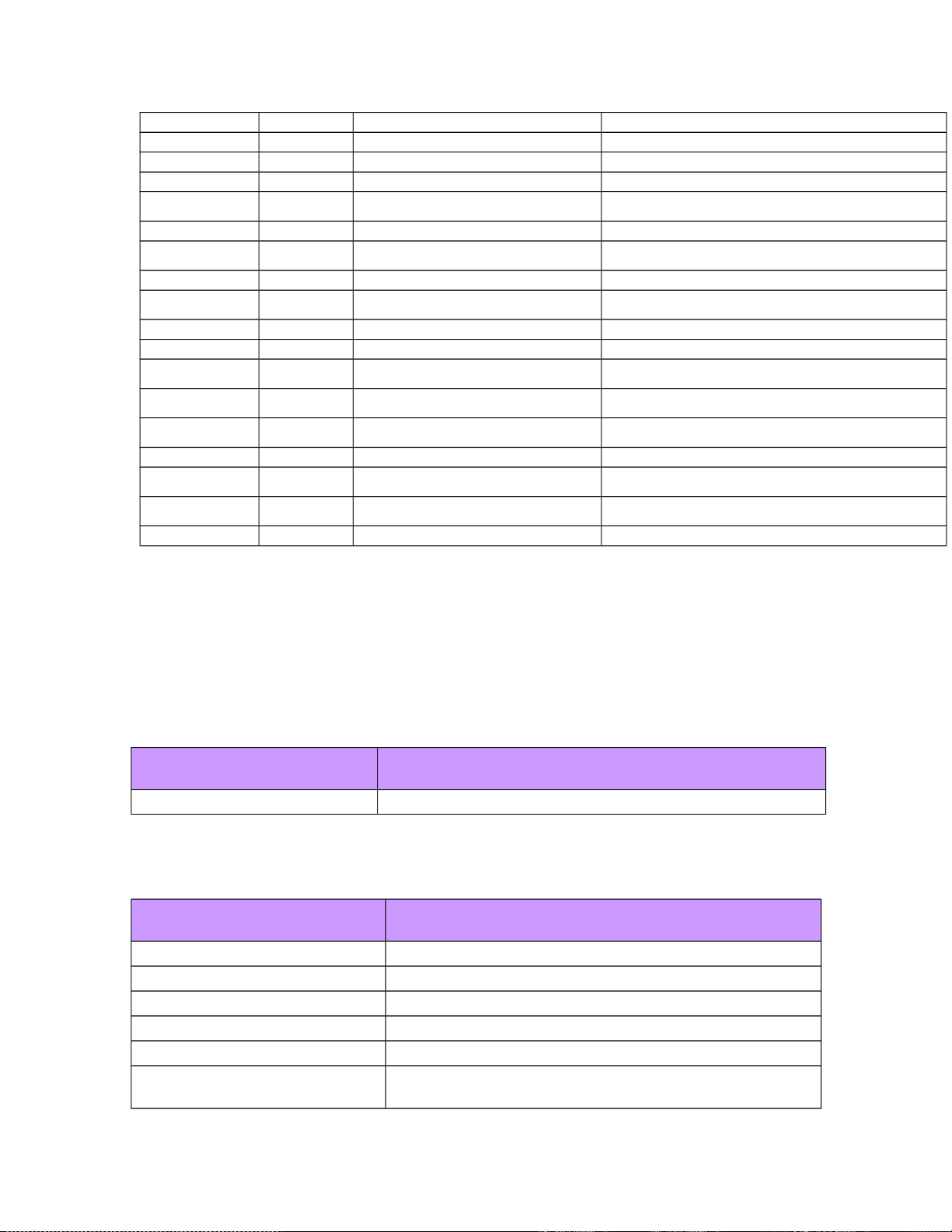
Smoke Extra Switch_Smoke Key 0 = Off, Key 50 = On
Speed_Brake Boeing 777 Lever_Speed_Brake Key 0 = Down, Key 100 = Up
Standby Vac Mooney Switch_Standby_Vacuum Key 0 = Off, Key 50 = On
Starter Boeing 777 Switch_Starter# (0-3) Key 0 = Off, Key 50 = On
Starter (3 Way
Switch) DC3 Rocker_Starter Key 0 = Left On, Key 25 = Neutral, Key 50 Right On
Strobe Light Cessna 172 Switch_Strobe_Light Key 0 = Off, Key 50 = On
Tailwheel Lock
Dehavilland
Comet Lever_Tailwheel_Lock Key 0 = Unlocked, Key 100 = Locked
Taxi Light Cessna 172 Switch_Taxi_Light Key 0 = Off, Key 50 = On
Throttle Lever Boeing 777 Lever_Throttle#
Key 0 = Max, Key 50 = Idle, Key 100 = Max Reverser
Engines without reversers are only 0-50
Throttle Lever Wright Flyer Lever_Throttle_Wright Key 0 = Off, Key 50 = On
Vimy Throttle Vickers Vimy Lever_Vicker_Throttle Key 0 = 100%, Key 50 = 0%
Vimy Throttle
Differential Vickers Vimy Lever_Vicker_Throttle_Differential
Key 0 = Max Engine0, Key 25 = Neutral, Key 50 = Max
Engine1
Vimy Throttle
Differential Vickers Vimy Lever_Vicker_Throttle_Diff_Left Key 0 = 100% Power, Key 50 = 0% Power
Vimy Throttle
Differential Vickers Vimy Lever_Vicker_Throttle_Diff_Right Key 0 = 100% Power, Key 50 = 0% Power
Water Rudder Caravan Lever_Water_Rudder Key 0 = Off, Key 100 = On
Wobble Pump
Lockheed
Vega Lever_Wobble_Pump Key 0 -100 is one cycle
Yoke\Stick Cessna 182 Lever_Stick_Fore_Aft
Key 0 = Max Forward or In, Key 50 = Neutral, Key 100 =
Max Backward or Out
Yoke\Stick Cessna 182 Lever_Stick_L_R Key 0 = Left, Key 50 = Neutral, Key 100 = Max Right
Time-Based Keyframe Animation (Aircraft and Scenery)
If a part name has the prefix from the following table and the part has a keyframe
animation, then that animation will be tied to a Flight Simulator variable. The total
number of keyframes must not exceed 1024, which means that the maximum animation
cycle is approximately 56 seconds.
Part name prefix Description of variable
Tick18 Clock running at 18 Hz.
Material Names
The material names listed in the following table have special meaning.
Material name prefix Meaning
LINE_ Lines are drawn instead of triangles.
ZBIAS_ A default z-bias is added to the polygons.
ZBIAS_## A z-bias of ## is added to the polygons.
DS_ Polygons are drawn double sided.
BRIGHT_ The material is bright (emits light).
LIGHT_BEACON A beacon point light is drawn, and the diffuse color is the
light color.
© 2002 Microsoft Corporation. All rights reserved. Page 20 of 25
Microsoft Flight Simulator 2002 SDK MakeMDL
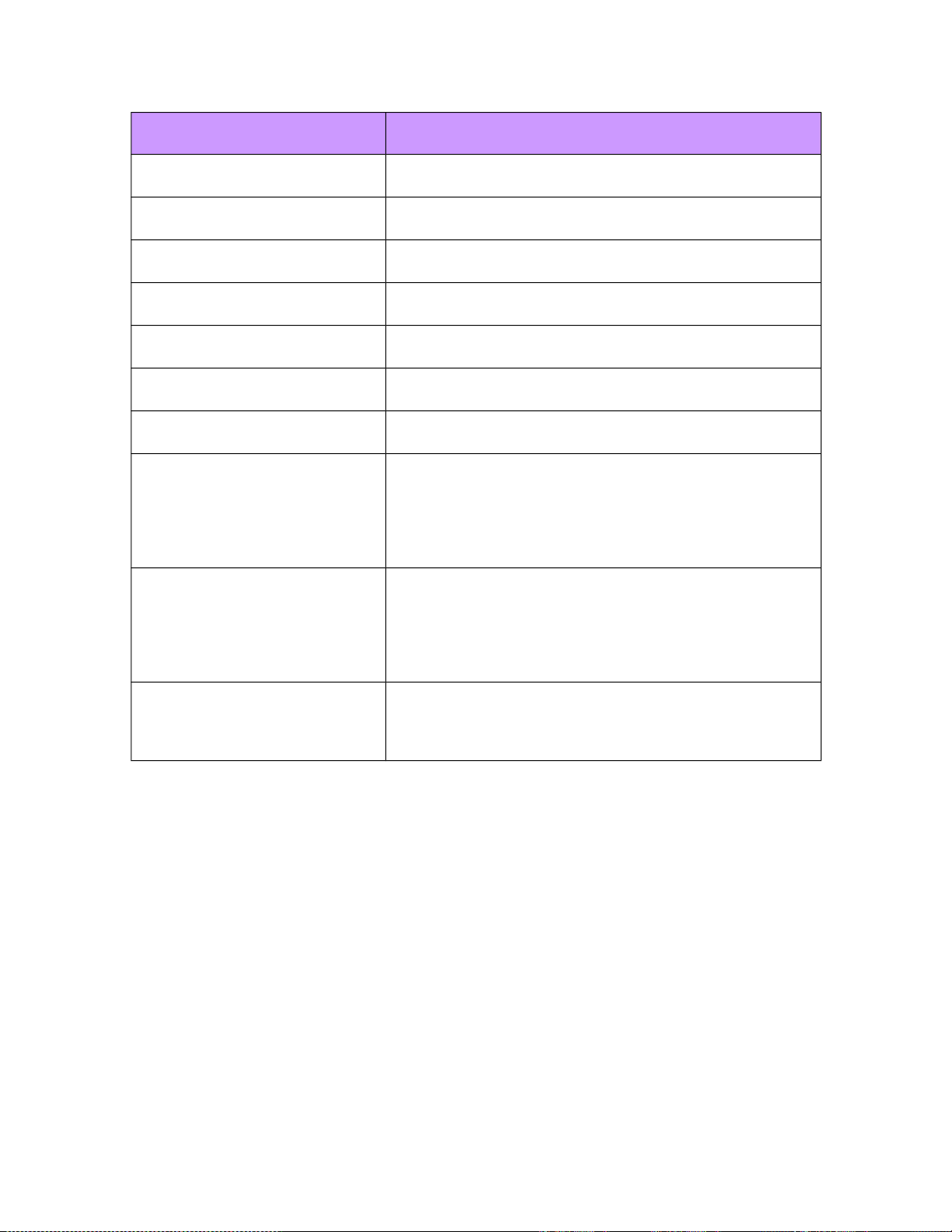
Material name prefix Meaning
LIGHT_STROBE A strobe point light is drawn, and the diffuse color is the light
color
LIGHT_RECO A recognition point light is drawn, and the diffuse color is the
light color
LIGHT_WING A wing point light is drawn, and the diffuse color is the light
color.
LIGHT_LOGO A logo point light is drawn, and the diffuse color is the light
color.
LIGHT_NAV A navigation point light is drawn, and the diffuse color is the
light color.
LIGHT_TAXI A taxi spotlight is drawn, and the diffuse color is the light
color.
LIGHT_LAND A landing spotlight is drawn, and the diffuse color is the light
color.
Animate_VCRainMoving_16_20_ The physical geometry under the
airspeed_effects_windshield node need a material name of
animate_VCRainMoving_16_20_ and must mapped to
texture VCRainMoving0000.bmp. The material needs to be
at 0 percent opacity. See the Gmax_aircraft SDK for more
details.
Animate_VCRainStopped_16_20_ The physical geometry under the
airspeed_effects_windshield node need a material name of
animate_VCRainStopped_16_20_ and must mapped to
texture VCRainStopped0000.bmp. The material needs to be
at 0 percent opacity. See the Gmax_aircraft SDK for more
details.
Animate_ChainSegment_16_100_ The physical geometry under the engine0_turning node
needs a material name of Animate_ChainSegment_16_100_
and must mapped to texture ChainSegment0000.bmp. See
the Gmax_aircraft SDK for more details.
Texture Names
MakeMDL makes the following assumptions about texture names:
• No matter what the texture extension is in the .x file, the output file references a
texture with a .bmp extension. If you model with .tga files, the output file
references a .bmp file.
• If the texture name starts with “DECAL_” a z-bias is added automatically to all
polygons drawn with this texture.
• If the texture name is “DECAL_NNUMBER” then the texture is used for the
NNumber of the aircraft.
• If the texture name ends with “_T” then the texture is the undamaged version of
the texture (the damaged version ends with “_D”).
• If the texture name starts with “$” or “_panel_” then the texture is assumed to be a
virtual cockpit (VC) gauge texture.
© 2002 Microsoft Corporation. All rights reserved. Page 21 of 25

Microsoft Flight Simulator 2002 SDK MakeMDL
Appendix
PerPart LOD
MakeMDL can perform two types of LOD (level-of-detail) selection, discreet LOD or
PerPart LOD. For discreet LOD, you must specify a different model for each LOD. Store
each LOD in a different .x file and name each file <Base Name>_LOD_###.x (where ###
is 0–200 ). MakeMDL handles discreet LOD automatically.
For PerPart LOD, you must name the frames/parts in the .x file. If a part name ends in
“_LOD_###” (where ### is 0–100), MakeMDL makes this part visible only when the
viewer is close enough to the model. If a part is empty (for example, it does not contain
any polygons), MakeMDL does not draw anything.
PerPart LOD naming example:
Root_Gear
Gear_LOD_100
<gear model used when LOD is 50 to 100>
Gear_LOD_50
<gear model used when LOD is 10 to 50>
Gear_LOD_10
<gear model used when LOD is 0 to 10>
Multitexture .x File Templates
MakeMDL uses the following .x file templates to specify multitexture file names. (For
more information about specifying materials in GMax, see GMax Materials.doc)
template DiffuseTextureFileName {
<E00200E2-D4AB-481a-9B85-E20F9AE07401>
STRING filename;
}
template AmbientTextureFileName {
<E00200E2-D4AB-481a-9B85-E20F9AE07402>
STRING filename;
}
template EmissiveTextureFileName {
<E00200E2-D4AB-481a-9B85-E20F9AE07403>
STRING filename;
}
template ReflectionTextureFileName {
<E00200E2-D4AB-481a-9B85-E20F9AE07404>
STRING filename;
}
Example Materials
The following example shows the only combinations of material files that MakeMDL can
use.
© 2002 Microsoft Corporation. All rights reserved. Page 22 of 25

Microsoft Flight Simulator 2002 SDK MakeMDL
Note When you use a reflection map, make sure the file name of the reflection texture
matches the file name of both the diffuse texture and the texture.
Material Base_Texture_With_NightMap {
0.000000; 1.000000; 0.000000; 1.000000;;
0.000000;
1.000000; 1.000000; 1.000000;;
0.000000; 0.000000; 0.000000;;
TextureFileName {
"BaseTexture.bmp";
}
DiffuseTextureFileName {
"BaseTexture.bmp";
}
AmbientTextureFileName {
"NightMap.bmp";
}
Material Base_Texture_With_LightMap {
0.000000; 0.000000; 1.000000; 1.000000;;
0.000000;
1.000000; 1.000000; 1.000000;;
0.000000; 0.000000; 0.000000;;
TextureFileName {
"BaseTexture.bmp";
}
DiffuseTextureFileName {
"BaseTexture.bmp";
}
EmissiveTextureFileName {
"LightMap.bmp";
}
Material Base_Texture_With_ReflectionMap {
1.000000; 0.000000; 0.000000; 1.000000;;
0.000000;
1.000000; 1.000000; 1.000000;;
0.000000; 0.000000; 0.000000;;
TextureFileName {
"BaseTexture.bmp";
}
DiffuseTextureFileName {
"BaseTexture.bmp";
}
ReflectionTextureFileName {
"BaseTexture.bmp";
}
Material Base_Texture_With_ReflectionMap_And_LightMap {
1.000000; 0.000000; 0.000000; 1.000000;;
0.000000;
1.000000; 1.000000; 1.000000;;
0.000000; 0.000000; 0.000000;;
TextureFileName {
"BaseTexture.bmp";
}
DiffuseTextureFileName {
"BaseTexture.bmp";
}
EmissiveTextureFileName {
"LightMap.bmp";
}
ReflectionTextureFileName {
© 2002 Microsoft Corporation. All rights reserved. Page 23 of 25

Microsoft Flight Simulator 2002 SDK MakeMDL
"BaseTexture.bmp";
}
XML XFile extensions
MakeMDL understands the following XFile template that is used to enable new features
that create attachpoints (with the potential to attach other objects), suppress crash on
portions of models, and add platforms to models. These extensions are only for scenery
objects and will not operate on aircraft. Attributes are applied on a per-part basis and are
automatically generated when using the AttachToolGmax.ms script available in the
GMax AttachTool SDK. The following reference can be used to create extensions to
other tools that output .X files for Flight Simulator:
template PartData {
<79B183BA-7E70-44d1-914A-23B304CA91E5>
DWORD nByteCount;
array BYTE XMLData[ nByteCount ];
}
PartData {
141;
60, 63, 120, 109, 108, 32, 118, 101, 114, 115,
105, 111, 110, 61, 34, 49, 46, 48, 34, 32,
101, 110, 99, 111, 100, 105, 110, 103, 61, 34,
73, 83, 79, 45, 56, 56, 53, 57, 45, 49,
34, 63, 62, 32, 60, 70, 83, 77, 65, 75,
69, 77, 68, 76, 68, 65, 84, 65, 32, 118,
101, 114, 115, 105, 111, 110, 61, 34, 57, 46,
48, 34, 62, 60, 65, 84, 84, 65, 67, 72,
80, 79, 73, 78, 84, 32, 110, 97, 109, 101,
61, 34, 97, 116, 116, 97, 99, 104, 112, 116,
95, 98, 101, 97, 99, 111, 110, 34, 62, 32,
60, 47, 65, 84, 84, 65, 67, 72, 80, 79,
73, 78, 84, 62, 60, 47, 70, 83, 77, 65,
75, 69, 77, 68, 76, 68, 65, 84, 65, 62, 0;
} // End PartData
This extension is a binary encoding of the following XML (an attach point named
‘attachpt_beacon’):
<?xml version="1.0" encoding="ISO-8859-1"?> <FSMakeMdlData
version="9.0"><Attachpoint name="attachpt_beacon">
</Attachpoint></FSMakeMdlData>
The following is a sample representation of the available XML structure. A brief
description of how these elements operate follows. See the BGLComp SDK for more
information about using XML in Flight Simulator:
<?xml version=”1.0” encoding=”ISO-8859-1”?>
<FSMakeMdlData version=”9.0”>
<!-- turn off crash for a part -->
<NoCrash/>
<!-- specify that this part is a platform and define surface type -->
<platformName=”PlatformName” surfaceType=”CONCRETE” />
<!-- specify that this part is an attach point. -->
<!-- Note: The geometry for this part will not be exported -->
© 2002 Microsoft Corporation. All rights reserved. Page 24 of 25

Microsoft Flight Simulator 2002 SDK MakeMDL
<!-- It is possible to attach library objects and effects to this point
-->
<Attachpoint name=”attachpt_beacon”/>
<AttachedObject>
<LibraryObject name=”4a5ceec84f2a9e27f12ee7a40f0c856c”
scale=”1.0” />
<Effect effectName=”name” effectParams=”params”/>
</AttachedObject>
</Attachpoint>
</FSMakeMdlData>
The following is a description of the XML elements:
NoCrash
This element specifies that the associated part should not be added to the crash octtree.
An example is
Platform
This element specifies that the associated part is to be treated as a platform for landing.
The surface type is required to be one of the following: "CONCRETE", "GRASS",
"WATER", "GRASS_BUMPY", "ASPHALT", "SHORT_GRASS", "LONG_GRASS",
"HARD_TURF", "SNOW", "ICE", "URBAN", "FOREST", "DIRT", "CORAL",
"GRAVEL", "OIL_TREATED", "STEEL_MATS", "BITUMINUS", "BRICK",
"MACADAM", "PLANKS", "SAND", "SHALE", "TARMAC",
"WRIGHT_FLYER_TRACK".
When specifying that a part is a platform it is implied that the part also has the
<NoCrash> attribute. Note: platforms cannot have an animated part at any point in its
parent hierarchy.
Attachpoint
This element specifies that the associated part is to be treated as an attach point. All of
the geometry for this part will be removed and only the root point of this part will be
retained. The root point will be treated as the attach point where other object can be
attached. The name is can be referenced when placing scenery objects to attach objects
to one another. See the BGLComp SDK for more information. Note: A part that is
decorated with TICK18 cannot be used as an attach point. The TICK18 part can be made
invisible (with 100% opacity) or extremely small and used as a parent node for an attach
point to create attach points that move.
AttachedObject
This element specifies that there is another library object or an effect attached to this
object. The intent is to allow attaching effects such as hazard lights, or library objects
such as generic rotating radar dishes. It is not necessary (nor recommended) to attach all
animated objects. Only attach objects that are true ‘library’ objects that were created to
be placed in multiple locations. A good example of when an attached library object
should be used would be creating a marina object and attaching boats from a boat library.
© 2002 Microsoft Corporation. All rights reserved. Page 25 of 25