

Questions about simulators FSX/P3D
This process works on both Prepar3D and FS2004.
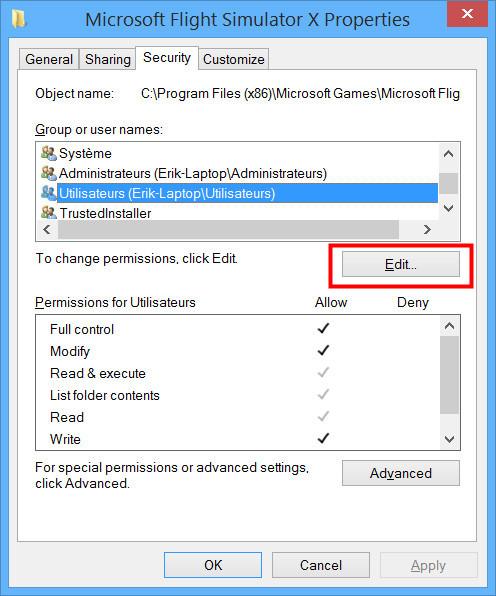
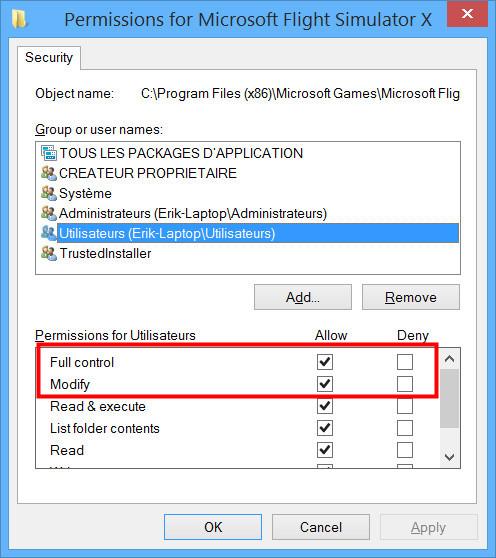
By default, FSX is installed in « C:\Program Files (x86)\Microsoft Games\Microsoft Flight Simulator X ». The problem is that on Windows 7 and 8+ or even Windows 10 you don’t have a full control of the files inside « Microsoft Flight Simulator X », which prevent a program from writing in a configuration file. To solve that problem, go to « C:\Program Files (x86)\Microsoft Games », then do a right click on the folder « Microsoft Flight Simulator X », click « Properties », then on the « Security » tab. Here, choose « Users (xxxxxx) », then click on « Modify ». In the window just opened, choose again « Users (xxxxxx) », click on « Full control », then « Modifications ». Now, you just have to click on « OK » and Windows will update the permissions.
Instructions in images below :
By default, FSX is installed in « C:\Program Files (x86)\Microsoft Games\Microsoft Flight Simulator X ». The problem is that on Windows 7 and 8+ or even Windows 10 you don’t have a full control of the files inside « Microsoft Flight Simulator X », which prevent a program from writing in a configuration file. To solve that problem, go to « C:\Program Files (x86)\Microsoft Games », then do a right click on the folder « Microsoft Flight Simulator X », click « Properties », then on the « Security » tab. Here, choose « Users (xxxxxx) », then click on « Modify ». In the window just opened, choose again « Users (xxxxxx) », click on « Full control », then « Modifications ». Now, you just have to click on « OK » and Windows will update the permissions.
Instructions in images below :
 |
 |
on
dimanche août 09
The gauge Boeing777-300.gau, originally created for FS2004, doesn’t works in FSX without a specific DLL
To solve this problem, you have to copy and paste the DLL « msvcr70.dll » in FSX’s main folder (C:\Program Files (x86)\Microsoft Games\Microsoft Flight Simulator X). If you have the same issue on Prepar3D, this solution should also work. Nevertheless, we have not tried it on P3D.
« msvcr70.dll » is available for free here : http://www.fichier-dll.fr/msvcr70.dll,2740,2740
To solve this problem, you have to copy and paste the DLL « msvcr70.dll » in FSX’s main folder (C:\Program Files (x86)\Microsoft Games\Microsoft Flight Simulator X). If you have the same issue on Prepar3D, this solution should also work. Nevertheless, we have not tried it on P3D.
« msvcr70.dll » is available for free here : http://www.fichier-dll.fr/msvcr70.dll,2740,2740
on
dimanche août 09
Something essential, when you own an add-on which 3D model was created for FS2004 but used in FSX SP2 (also called Port Over), is to deactivate the Preview DirectX 10 in the settings of FSX. In fact, FS2004 addons aren’t compatible with DirectX 10.
Example 1: A part of the airplane is invisible.
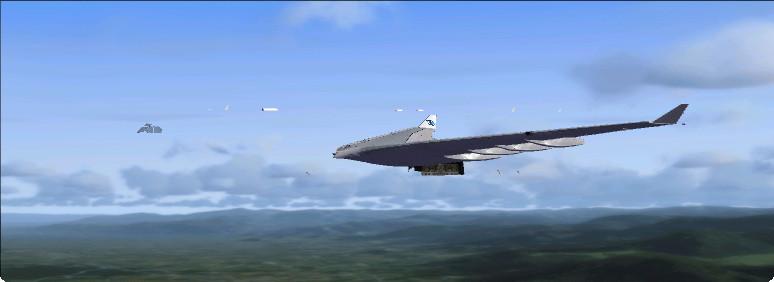
Example 2 : The wings if the airplane are invisible.
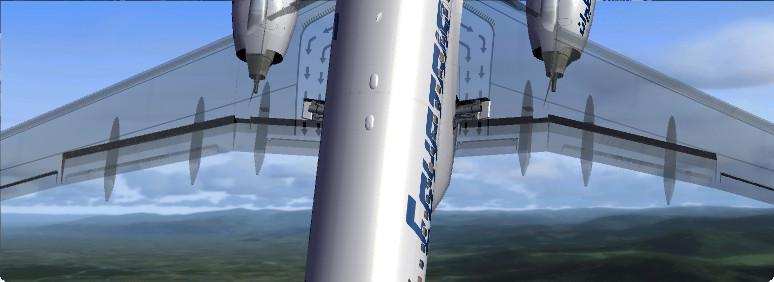
Example 3 : The airplane is entirely grey, without texture.
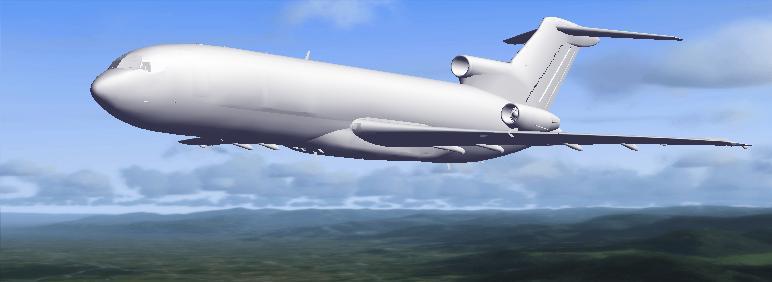
The solution : Deactivate DirectX 10 preview.
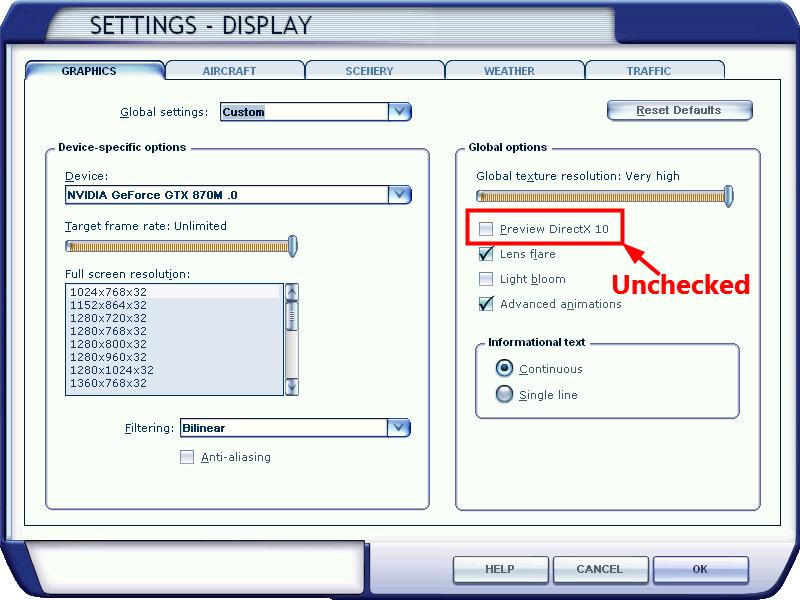
Example 1: A part of the airplane is invisible.
Example 2 : The wings if the airplane are invisible.
Example 3 : The airplane is entirely grey, without texture.
The solution : Deactivate DirectX 10 preview.
on
dimanche août 09
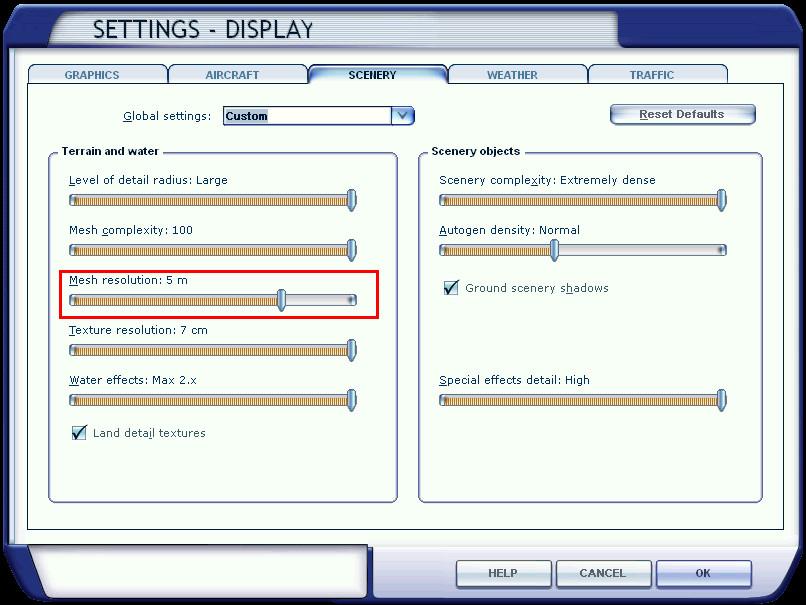
Some of your airplanes bounce on the tarmac, and the same thing happens for the vehicles around: that’s a known bug, which can be solved by modifying the « Mesh Resolution » to 5m maximum. In the Display Settings of FSX, click on the « Scenery » tab and change the resolution as shown below :
on
dimanche août 09
The issue is fixed in two easy steps :
Step 1 : Download UIAutomationCore.dll
Step 2 : Unpack the ZIP file and place the extracted UIAutomationCore.dll in the root of your FSX installation folder where the file fsx.exe resides. Make sure FSX is not running.
After this action, start FSX and you will find that switching views in FSX, no longer eventually causes FSX to crash.
Without this fix, FSX will hang as well as you will be “timed out” in a multi player session. Do not use any other versions of UIAutomationCore.dll, since this version is the only version that will stop the crashes.
Step 1 : Download UIAutomationCore.dll
Step 2 : Unpack the ZIP file and place the extracted UIAutomationCore.dll in the root of your FSX installation folder where the file fsx.exe resides. Make sure FSX is not running.
After this action, start FSX and you will find that switching views in FSX, no longer eventually causes FSX to crash.
Without this fix, FSX will hang as well as you will be “timed out” in a multi player session. Do not use any other versions of UIAutomationCore.dll, since this version is the only version that will stop the crashes.
on
dimanche août 09
To install FSX (all versions) on Windows 8/8.1, follow these steps :
1- Install FSX normally with the DVDs.
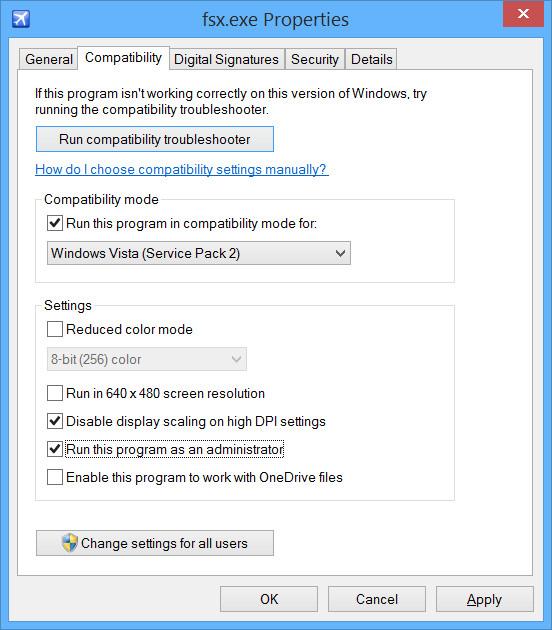
2- When the installation is over, right click on « fsx.exe » (you can find it here : C:\Program Files (x86)\Microsoft Games\Microsoft Flight Simulator X). Here, choose the « Compatibility » tab and set up the window as shown below :
3- Download the 32 bits version of « UIAutomationCore », unzip the file and paste it in FSX’s main folder (C:\Program Files (x86)\Microsoft Games\Microsoft Flight Simulator X\). It will correct the problem of unexpected crashes of FSX.
Now, after these little steps, FSX should be stable on Windows 8/8.1 and 10
1- Install FSX normally with the DVDs.
2- When the installation is over, right click on « fsx.exe » (you can find it here : C:\Program Files (x86)\Microsoft Games\Microsoft Flight Simulator X). Here, choose the « Compatibility » tab and set up the window as shown below :
3- Download the 32 bits version of « UIAutomationCore », unzip the file and paste it in FSX’s main folder (C:\Program Files (x86)\Microsoft Games\Microsoft Flight Simulator X\). It will correct the problem of unexpected crashes of FSX.
Now, after these little steps, FSX should be stable on Windows 8/8.1 and 10
on
dimanche août 09
SP stands for Service Pack 1 or 2, which are patches improving FSX. They are available after the game’s release.
Flight Simulator X Service Pack 1 (Click to download) corrects the following issues found by clients after the game’s release :
• Activation and Installation
• Problems linked to the use of additional components
• Improvement of performance
• Problems linked to the content
Flight Simulator X Service Pack 2 (Click to download) improves the following functions :
• Multiplayer compatibility
• DirectX 10
You have to install the Service Pack 1 (SP1), before the second one.
Flight Simulator X Service Pack 1 (Click to download) corrects the following issues found by clients after the game’s release :
• Activation and Installation
• Problems linked to the use of additional components
• Improvement of performance
• Problems linked to the content
Flight Simulator X Service Pack 2 (Click to download) improves the following functions :
• Multiplayer compatibility
• DirectX 10
You have to install the Service Pack 1 (SP1), before the second one.
on
dimanche août 09
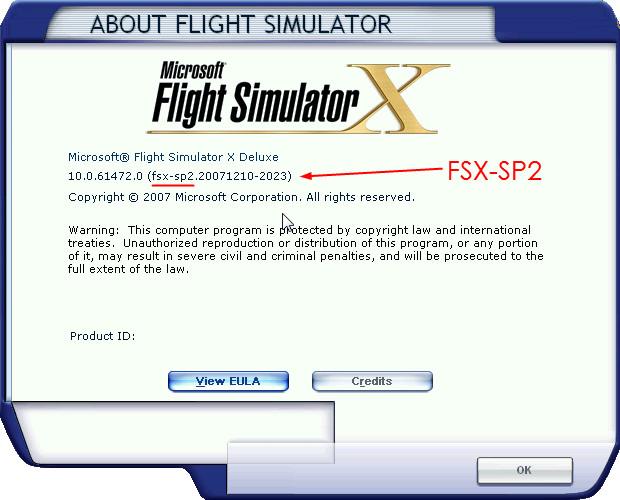
To know which version of FSX is installed on your computer, it’s easy: Start FSX, and begin a flight wherever you want, with any aircraft you want. Now, at the top of your screen, open the menu bar (if not already opened) and click on « Help » to the right. Here, click on « About ». The following window appears with your version of FSX:
on
dimanche août 09
All add-ons from Rikoooo can be uninstalled the same way :
This works on Windows Vista, 7, 8 and 10.
On the desktop, click on the « Start Menu », then on « All Programs » and go to the « Rikoooo Add-ons »
folder. When you click on it, you’ll find the list of add-ons you’ve installed on your computer. Now, you just
have to choose the one you want to uninstall.
Other method, from the Control Panel of Windows choose Programs and Features now you see the list of all your installed programs, select the one you want to uninstall.
This works on Windows Vista, 7, 8 and 10.
On the desktop, click on the « Start Menu », then on « All Programs » and go to the « Rikoooo Add-ons »
folder. When you click on it, you’ll find the list of add-ons you’ve installed on your computer. Now, you just
have to choose the one you want to uninstall.
Other method, from the Control Panel of Windows choose Programs and Features now you see the list of all your installed programs, select the one you want to uninstall.
on
dimanche août 09
From auto-installers version 10 or + all documentations are located in My Documents folder or Documents based on your Windows version.
Follow this steps from auto-installer lower than version 10 :
This works on Windows Vista, 7, 8 and 10.
On the desktop, click on the « Start Menu », then on « All Programs » and go to the « Rikoooo Add-ons » folder. When you click on it, you’ll find the list of add-ons you’ve installed on your computer.
Ohter method, you'll find all included documentation in the root folder of your add-ons, exemple : C:\Program Files (x86)\Microsoft Games\Microsoft Flight Simulator X\SimObjects\Airplanes\XXXX\
Follow this steps from auto-installer lower than version 10 :
This works on Windows Vista, 7, 8 and 10.
On the desktop, click on the « Start Menu », then on « All Programs » and go to the « Rikoooo Add-ons » folder. When you click on it, you’ll find the list of add-ons you’ve installed on your computer.
Ohter method, you'll find all included documentation in the root folder of your add-ons, exemple : C:\Program Files (x86)\Microsoft Games\Microsoft Flight Simulator X\SimObjects\Airplanes\XXXX\
on
dimanche août 09
First, check that you have FSX-SP2 installed on your computer. Indeed, the « Preview DirectX 10 » only appears if you have installed the SP2 patch or if you have FSX Acceleration or FSX Gold or FSX Steam Edition.
Below you can download both patches
Download the SP1
Download the SP2
Below you can download both patches
Download the SP1
Download the SP2
on
dimanche août 09
When a lot of modifications have been made into the « Gauge » folder, it is frequent that a part of the base files are missing. In that case, if an add-on needs theses files, it won’t be able to display the gauges into the panel. Often solution consists in reinstalling FSX. In order to avoid reinstalling FSX, you can download Gauge Recover, which is a little program created by Rikoooo that will restore every original file from « Gauges » and « Effects » folders.
Update 13/02/2014 : A Prepar3d version is being created.
Update 13/02/2014 : A Prepar3d version is being created.
on
dimanche août 09
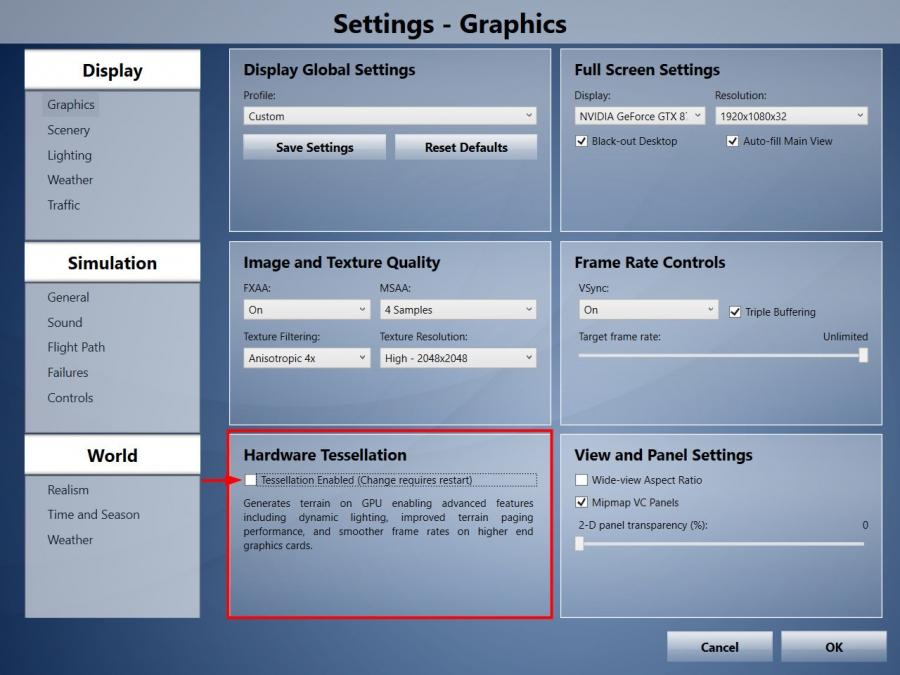
This problem is caused by the activation of the function Hardware Tessellation in the graphic configuration of Prepar3D v2 or v3.
Here is a comparison with scenery Seychelles Photo Real Scenery Pack avalaible here :
As shown in the above comparison, disabling the function Hardware Tessellation fix the problem.
After deactivation you must restart Prepar3D for the fix to take effect.
Here is a comparison with scenery Seychelles Photo Real Scenery Pack avalaible here :
With Hardware Tessellation enabled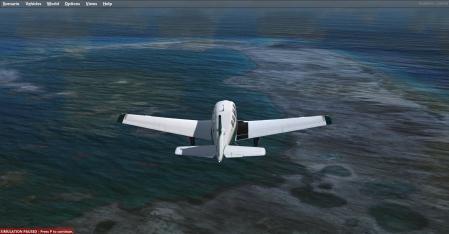 |
Without Hardware Tessellation enabled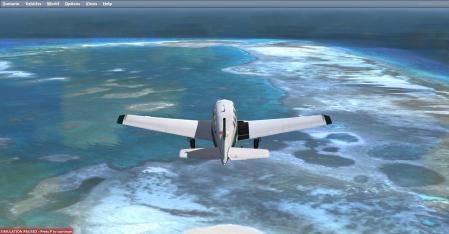 |
After deactivation you must restart Prepar3D for the fix to take effect.
on
vendredi novembre 20
Users of new Prepar3D v4 : Following a charset change in Scenery.cfg to UTF-16LE the auto-installers can not anymore enable your scenery automatically.
Temporary solution : Open the folder C: \ ProgramData \ Lockheed Martin \ Prepar3D v4 then open the file Scenery.cfg with Notepad then click File - Save As ... In the window that opens select UTF-8 in the Encoding field (see image below) and click Save.
Re-install the scenery and voila.
This fix must be repeated for each scenery installation because P3D re-save the Scenery.cfg file in UTF-16LE after each opening.
Sceneries added after September 6, 2017 are not affected by this issue.
We are updating the automatic installer of each scenery, the problem will be corrected soon, but takes some time.
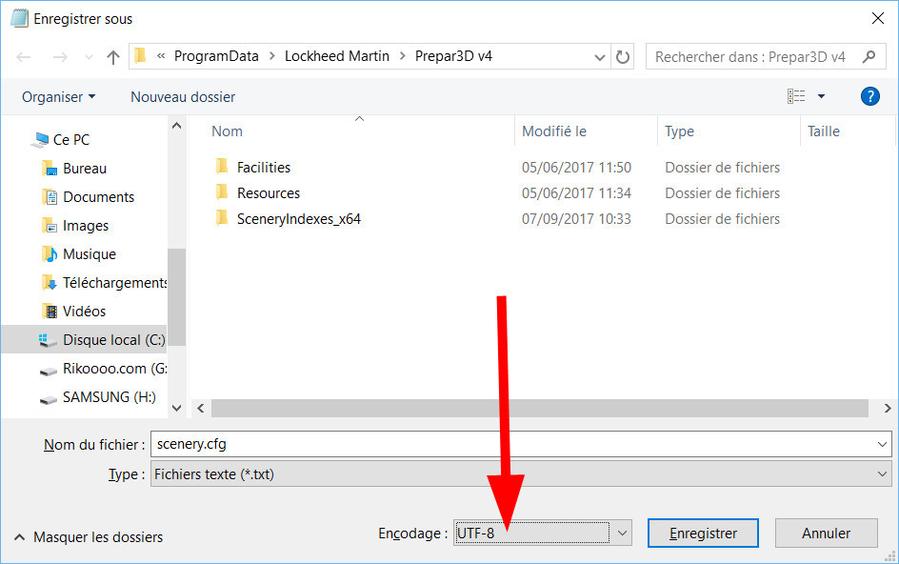
Temporary solution : Open the folder C: \ ProgramData \ Lockheed Martin \ Prepar3D v4 then open the file Scenery.cfg with Notepad then click File - Save As ... In the window that opens select UTF-8 in the Encoding field (see image below) and click Save.
Re-install the scenery and voila.
This fix must be repeated for each scenery installation because P3D re-save the Scenery.cfg file in UTF-16LE after each opening.
Sceneries added after September 6, 2017 are not affected by this issue.
We are updating the automatic installer of each scenery, the problem will be corrected soon, but takes some time.
on
jeudi septembre 07
You wait but nothing happens, no file is downloaded, possibly after a few minutes of waiting you receive an error message of the type "Connection timeout" or "ERR_EMPTY_RESPONSE" or other messages according to your Internet browser.
In fact, the downloads from Rikoooo are sent from another local server on port 8888 (ex http://download.rikoooo.com:8888) this for a better stability of downloads especially with files of several Gigabytes.
The problem is that the firewall of the router (ex Livebox, Freebox, Neufbox) of certain users is configured to refuse the port 8888 (and also the port 8080), to know if you are in this case, go to Simviation.com and download any file at random, if the download does not start (like at Rikoooo), then you are among those small percentage of users whose router blocks port 8888 (and 8080 for Simviation). Those ports are normally used for the web interface, streaming, and HTTP, therefore, it's safe to open.
The solution
You must connect to your router (ex Livebox) and add a rule that opens the 8888 TCP / UDP port.
Here are links to some articles in English that explain how to open your ports, do not hesitate to do your own research on Google using the name of your Internet service provider as a keyword.
By WikiHow
https://www.wikihow.com/Open-Ports
By HowToGeek
https://www.howtogeek.com/66214/how-to-forward-ports-on-your-router/
Link to Youtube videos with dozens of tutorials (add your Internet service provider as a keyword)
https://www.youtube.com/results?search_query=open+your+router+port
In fact, the downloads from Rikoooo are sent from another local server on port 8888 (ex http://download.rikoooo.com:8888) this for a better stability of downloads especially with files of several Gigabytes.
The problem is that the firewall of the router (ex Livebox, Freebox, Neufbox) of certain users is configured to refuse the port 8888 (and also the port 8080), to know if you are in this case, go to Simviation.com and download any file at random, if the download does not start (like at Rikoooo), then you are among those small percentage of users whose router blocks port 8888 (and 8080 for Simviation). Those ports are normally used for the web interface, streaming, and HTTP, therefore, it's safe to open.
The solution
You must connect to your router (ex Livebox) and add a rule that opens the 8888 TCP / UDP port.
Here are links to some articles in English that explain how to open your ports, do not hesitate to do your own research on Google using the name of your Internet service provider as a keyword.
By WikiHow
https://www.wikihow.com/Open-Ports
By HowToGeek
https://www.howtogeek.com/66214/how-to-forward-ports-on-your-router/
Link to Youtube videos with dozens of tutorials (add your Internet service provider as a keyword)
https://www.youtube.com/results?search_query=open+your+router+port
on
samedi mars 03
Read this https://www.rikoooo.com/rikoooo-understanding-the-purpose-of-the-automatic-mod-installer-for-msfs
on
mercredi décembre 14