The single scenery configuration file, Scenery.cfg, indicates where scenery files are located and whether to empty the cache upon exit. It can also be used to exclude certain types of scenery.
The scenery configuration file resides in the root directory of Flight Simulator X, and consists of general and area sections.
Property |
Description |
Examples |
| title | The title of the configuration file. | Title=FS9 World Scenery |
| description | The description of the contents of the file. | Description=FS9 Scenery Data |
| clean_on_exit | Set to True to delete all files from the Cache folder upon exiting, otherwise all files in the Cache folder are left where they are upon exiting. | Clean_on_Exit=TRUE |
Property |
Description |
Examples |
| title | The title of the area. This text will be shown under
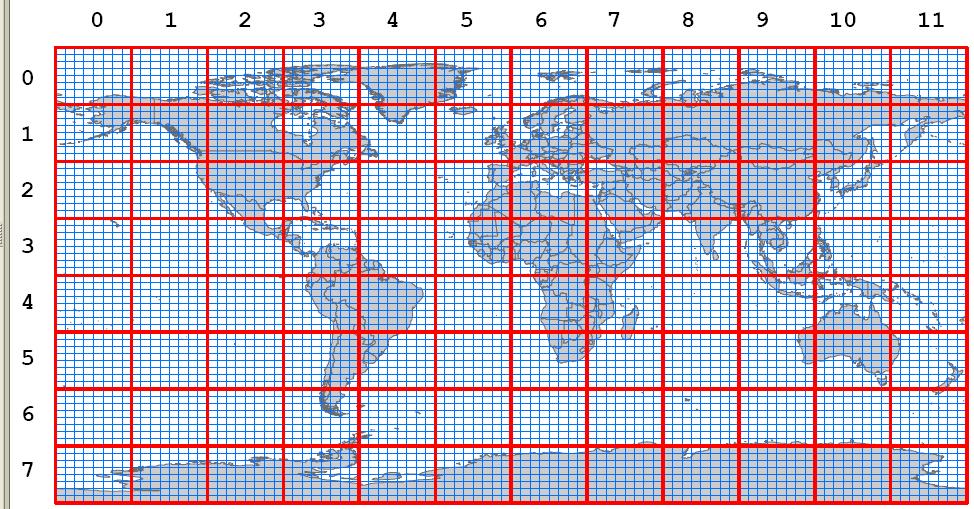
the Scenery Area column in the Scenery Library. The entries of the form nnnn Base refer to folders containing the standard scenery for the world, based on a grid shown in the Basic Scenery Grid section. |
Default Terrain( Title=Default Terrain
) Default Scenery( Title=Default Scenery ) 0000 Base( Title=0000 Base ) 0001 Base( Title=0001 Base ) Africa( Title=Africa ) Asia( Title=Asia ) Amsterdam Aerial Photo( Title=Amsterdam Aerial Photo ) Anchorage Aerial Photo( Title=Anchorage Aerial Photo ) Global, Generic & Vehicle Libraries( Title=Global, Generic & Vehicle Libraries ) Propeller Objects( Title=Propeller Objects ) Addon Scenery( Title=Addon Scenery ) |
| texture_id | Texture_ID=0 and Texture_ID=1 are special settings that should not be changed. Texture_ID=0 sets the global default texture directory to be searched if the requested texture cannot be found from the given path. This is also the location of global textures that have no other directory to reside in. Texture_ID=1 is the default terrain texture directory. | Default Terrain( Texture_ID=1 ) |
| remote | A
remote path to the scenery files. When using a remote path the
scenery is copied from the path
shown to a uniquely named folder created by the simulator.
The scenery files are then read from the new folder, a sub-folder
of the Cache
folder. Remote paths are very useful when reading
scenery files from a location that cannot be accessed as quickly as the
local hard drive, for example, from CD drives or a remote server. The format of the path can be one of the three defined for local paths. Only one of remote or local should be used. |
No examples. |
| local | The local path to the scenery files. When
using a local path the scenery is read directly from the path shown.
Various formats for designating the path to the scenery can be used: 1. Drive:\path For example: C:\MyScenery 2. [Volume]\path For example, [MySceneryCD]\MyScenery 3 \\Machine\share\path For example, \\MyServer\MyScenery Only one of remote or local should be used. |
Default Terrain( Local=Scenery\World
) Default Scenery( Local=Scenery\BASE ) 0000 Base( Local=Scenery\0000 ) 0001 Base( Local=Scenery\0001 ) Africa( Local=Scenery\AFRI ) Asia( Local=Scenery\ASIA ) Amsterdam Aerial Photo( Local=Scenery\Cities\Amsterd ) Anchorage Aerial Photo( Local=Scenery\Cities\Anchor ) Global, Generic & Vehicle Libraries( Local=Scenery\Global ) Propeller Objects( Local=Scenery\Props ) Addon Scenery( Local=Addon Scenery ) |
| layer | The layer number is typically equal to the [area.nnn] number. Higher numbered layers have priority over lower numbered layers. This number is shown in the simulation Scenery Library under the Priority column. Notice that add-on scenery has the highest layer number. | Default Terrain( Layer=1 ) Default Scenery( Layer=2 ) 0000 Base( Layer=3 ) 0001 Base( Layer=4 ) Africa( Layer=99 ) Asia( Layer=100 ) Amsterdam Aerial Photo( Layer=109 ) Anchorage Aerial Photo( Layer=110 ) Global, Generic & Vehicle Libraries( Layer=131 ) Propeller Objects( Layer=132 ) Addon Scenery( Layer=138 ) |
| active | Set to True to indicate that the scenery should be rendered by default. This will be shown as enabled scenery in the Scenery Library. If this is set to False, a user will have to enable the scenery before it is rendered. | Default Terrain( Active=TRUE ) The New South America( Active=FALSE ) |
| required | Set to True to indicate the folder is required and that the scenery entry cannot be deleted or turned off in the Scenery Library dialog. | Default Terrain( Required=TRUE ) 0000 Base( Required=FALSE ) |
| exclude | See The Exclude Property.. |
 |
The exclude property is provided to exclude the default scenery, objects and/or navigational aids, in a given four-sided area from being displayed, or transmitted in the case of radio navigational aids. The exclude property affects only scenery areas with a lower layer number than the scenery area the exclude property is added to. For example, if the property is placed in layer 70, then only layers 69 and below will be affected.
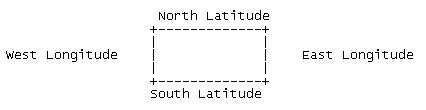
The exclude property has the following syntax (the north, west, south, east ordering must be adhered to):
 |
You can include more than one category. The maximum size of an exclude area is 90 degrees of longitude and 45 degrees of latitude.
The following example excludes all scenery types except NDB navigational aids from a rectangular area 30 minutes of longitude by 30 minutes of latitude:
