The Microsoft® Flight Simulator X: Acceleration Expansion Pack SDK includes a number of features specifically designed to support the multi-player racing, carrier take off and landing, and helicopter hoist and sling systems that are the main focus of this release. These additional features to the SDK are not available in the standard Flight Simulator X SDK, and are described in the document Notes on the Acceleration Expansion Pack SDK.
Developers should only use the Acceleration Expansion Pack SDK if their target audience is users who have installed the Acceleration Expansion Pack, or installed Flight Simulator X SP2. In the latter case the developer should not use any features marked as specific to the expansion pack if the add-on is to run cleanly on Flight Simulator X SP2 without the expansion pack. However, all add-ons developed using the expansion pack SDK but targeted at installations of Flight Simulator X SP2 should first be tested on the SP2 release.
If the target audience is users of earlier versions of Flight Simulator X, then developers should use the SDK provided with the earlier version. As a general rule only forward compatibility of the SDK is supported.
For more information on Flight Simulator X SP2 refer to www.FSInsider.com.
The SDK components updated are:
There have been a number of improvements to the Flight Simulator X SDK since the SDK SP1 update. The main changes are:
Many of the documents and tools include small improvements and changes. However the main areas that have been updated are:
The Flight Simulator X SDK can be used to create add-on components for Flight Simulator X. These components can be new or replacement aircraft, instrumentation, missions, scenery, terrain, airport ground vehicles, airport runways and buildings, special effects, camera views, and many other elements of the simulated world. It must be pointed out though that some of these tasks, such as creating new aircraft, are very involved, demand a considerable amount of skill and knowledge, and are time consuming. Other tasks, though requiring patience and close attention to detail, can be completed in a few hours - such as designing and adding a simple gauge to an existing aircraft, configuring a new camera, creating a new graphical special effect, or completing a fairly simple new mission. One of the keys to success in using this SDK is breaking a task down into small, testable components. Indeed, the creation of a new aircraft can involve the creation of new instruments, special effects, camera views, and appropriate missions, that can all be completed and tested individually before being added to the new aircraft.
This document provides a brief overview of all the components of the SDK, and provides links to all the detailed documentation for each component. Unless the default installation directory is changed, the SDK installs to:
C:\Program Files\Microsoft Games\Microsoft Flight Simulator X SDK\
The SDK is divided into four main areas:
Some tools and components are relevant to areas outside of the kit they are contained in. For example, special effects can be applied to aircraft as well as scenery. See also the Hints and Tips section for some guidance on specific general topics. A few of the tools require Microsoft .NET Framework Version 2.0 to be installed first. Install this from:
http://www.microsoft.com/downloads/details.aspx?FamilyID=0856EACB-4362-4B0D-8EDD-AAB15C5E04F5&displaylang=en
Most of the SDK components have been updated since Flight Simulator 2004, however a few components are completely new:
This is for programmers to extend Flight Simulator X through the writing of client applications and libraries. The SDK contains around 65 functions, and the documentation includes many working samples to help explain the development process.
A mission is a structured flight that can be an adventure, a tutorial, a test of knowledge or skill, a fun ride, or whatever the creator can dream up. A good number of missions are provided, however any interested third party developer can create their own.
The new camera system is highly customizable, providing the end user with some great new features and views.
The following tables lists the components of each kit, with links to the documentation describing how to use it.
Component |
Description |
Documentation |
| SimConnect SDK | The SimConnect SDK can be used by programmers to write add-on components. These components can be written in C, C++, or, if the managed API calls are being used, any .NET language such as C#.net or VB.net. | SimConnect |
| Variables | This folder contains a number of files that themselves contain large tables of the variables that can be used along with SimConnect, the XML gauge system, or the C gauge system. | |
| Camera Configuration | The camera system is highly customizable and extensible, through the use of configuration settings. | Camera Configuration |
| SimProp | Includes a tool to compile certain xml files into binary, the simpropcompiler. Creating these files is described in the Mission Creation document, as compiling mission xml files is the primary use of the tool. | Mission Creation |
Component |
Description |
Documentation |
| Autogen SDK | Autogen is the name given to the process of creating default buildings and vegetation. The SDK includes the annotation and autogen config editor tools. |
|
| BGL Compiler SDK | This SDK is used to compile scenery with the BGL scenery compiler. An, XML-based scenery format is required for creating new scenery.
Includes the BGLComp and BGLScan tools. |
|
| Special Effects SDK | Special effects are used to represent graphical effects such as fire, smoke, rain, steam, exhaust, and similar short term and highly animated effects. The Special Effects tool is a dialog based utility that can be installed to run along with the simulation. | Creating Special Effects |
| Terrain SDK | The terrain system consists of eight main data components, elevation (DEM data), imagery, land classification, water classification, regions, seasons, vector data, and population density. All sets of data can be replaced in whole or in part by new data, perhaps providing a higher resolution, or sometimes simply alternative data.
Includes the tmfViewer, Shp2Vec, Resample and Imagetool tools. |
|
| Traffic Toolbox SDK | Includes the TrafficDatabaseBuilder tool, and the traffictoolbox.dll tool. | Traffic Toolbox |
| Living World SDK | Includes a description of how to configure recreational boat traffic, freeway traffic, and airport ground vehicles. | Configuring Surface Vehicle Traffic |
| Modeling SDK | Contains tools to help build the 3D aircraft and scenery models. Includes the XtoMdl.exe tool, and attach point and cloud creation scripts.
The Attach Point Names document lists all the attach point names used by objects provided with Flight Simulator X.
FSX Materials provides a visual display of many of the features of materials, such as fresnel ramps, specular maps, bloom and ambient light, frame buffer blending and texture clamps.
New Aircraft Procedures and Texturing Aircraft Models give pertinent advice on how to build, animate and texture complex aircraft models. |
|
| Weather SDK | Describes the xml files that control the parameters for thermals and the rendered images for thermals and ridge lift. | Weather Systems |
Component |
Description |
Documentation |
| Missions | A mission is a structured flight that can be an adventure, a tutorial, a test of knowledge or skill, a fun ride, or whatever the creator can dream up. These missions are stored in XML files and are made available to the user through the Missions menu of FSX. Creating Missions involves use of the Object Placement Tool, which is powerful but not the easiest or most obvious tool to use. The Tutorial section of this document explains how to install the tool, how to create a simple mission using it, and how to add that Mission so that it shows up in FSX. |
Mission Creation |
Component |
Description |
Documentation |
| Cabdir SDK | If you create add-ons, you can use the Cabdir utility (cabdir.exe) to combine all the folders and files in a directory into a single .cab file (similar to a .zip file), simplifying the process of distributing files to end-users. | Creating Cabinet Files |
| Panels and Gauges SDK | XML gauges are described in full, along with a tutorial that shows the creation of a simple fuel pressure gauge, and a slightly more complex stopwatch gauge. Gauges can also be developed in C++, and the necessary include files, and samples, are provided.
Panel configuration files determine what gauges are displayed for any particular aircraft. Panels are particular to one variation of one aircraft, whereas gauges can be referenced from any number of panels. |
XML Gauge Maps
|
SimObject Container SDK |
The aircraft configuration file specifies the versions of the aircraft included in the aircraft container, as well as the attributes (name, color, sound, panels, gauges, and so on) for each aircraft and where to find the files that define those attributes. Other simulation objects such as airport vehicles, animals, boats, and so on, also require configuration files.
The sound configuration file is located in an aircraft’s Sound folder, and defines the sounds to use for that aircraft. |
To install the Flight Simulator X SDK the self-extracting executable file Vcredist must be installed first. Beginning with Visual Studio 6.0 Service Pack 5, Vcredist.exe is included with the service pack. For more information, and a link to download this file, refer to:
http://support.microsoft.com/kb/259403
Do not attempt to install the original retail version of the Flight Simulator X SDK over an updated SDK, as unpredictable results can occur. If for some reason this is required, uninstall all versions of the Flight Simulator X SDK and re-install in chronological order.
If developing using the Windows Vista operating system, the instructions in this SDK documentation assume the developer is working with Administrator privileges, otherwise security violations can occur when the tools try to create files in protected directories.
Application data for Flight Simulator X running on Windows® XP is stored in the C:\Documents and Settings\<user name>\Application Data\Microsoft\FSX folder - which is the folder referenced in this SDK documentation. However for Windows Vista application data is stored in:
C:\Users\<username>\AppData\Roaming\Microsoft\FSX
Visual C++ 2005 or Visual C++ 2005 Express Edition can be used to develop SimConnect client applications. For more information on the Express Edition check out the following websites:
www.microsoft.com/vstudio/express
www.msdn.microsoft.com/coding4fun
Caution: If an addon is developed using Visual Studio 2005 SP1 it will run on the development computer, but it will only run on other computers if either one of the following redist packages is installed, or the project is compiled with the _USE_RTM_VERSION compiler switch.
For 32 bit operating systems:
http://www.microsoft.com/downloads/details.aspx?familyid=200B2FD9-AE1A-4A14-984D-389C36F85647&displaylang=enFor 64 bit operating systems:
http://www.microsoft.com/downloads/details.aspx?FamilyID=EB4EBE2D-33C0-4A47-9DD4-B9A6D7BD44DA&displaylang=enUpdates to the SDK tools, samples, documentation and other components are available from:
Whereas most developer questions will be answered in the SDK documentation and samples, there will always be some questions that are not, so SDK developers are encouraged to join and participate in the various forums discussing the development of add-ons for Flight Simulator X.
A number of the SDK components require GUIDs (globally unique identifiers). A tool to generate these is included with both Visual Studio and Visual Studio Express, or alternatively download the GUIDGEN tool from:
This will place an icon on the desktop, called GUIDGen, open this up and double click on GUIDGEN to open up the tool:
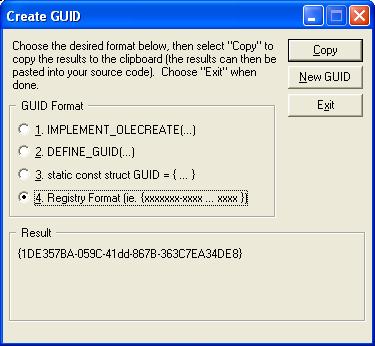 |
For most applications, choose option 4. Registry Format as the most appropriate GUID format.
Click New GUID as many times as necessary, as it is not a good idea to manually modify existing GUIDs, as the chances of repeating an existing GUID is greatly increased by doing this.
|
The paths in the documentation and some tools will only be correct if the SDK is installed to the default folder. If the SDK is installed to a non-default folder, be aware that some documented paths may not be correct, and run the tool ConfigSDK.exe (in the SDK folder) to update the paths of a number of the configuration tools to the correct folder.
When running Flight Simulator X with multiple monitors, there can be synchronization issues with the screens. There are two settings that can be added to the display.cfg file to help correct this (though setting them to TRUE can lead to some artifacts, such as tearing):
ForceVSync (default is FALSE) which, when set to TRUE, prevents the rendering on one monitor waiting for the rendering of another to finish, in Window mode.
ForceFullScreenVSync (default is TRUE) which, when set to TRUE, prevents the rendering on one monitor waiting for the rendering of another to finish, in FullScreen mode.
In fsx.cfg, in the [Graphics] section, the following two settings can affect performance:
SmallPartRejectRadius=N (default is 1) which determines the radius in pixels that an object has to be in order to be rendered. Increasing this size will cull more objects from the rendering pipeline.
MergeDirtyRegionUpdates=1 or 0 (default is 1) which indicates if updates, particularly to glass cockpit panels, should be done locally or to the whole display area. Setting this to 0 on older graphics cards might lead to a small performance improvement with certain panels.
In fsx.cfg, in the [Display] section, the following setting is new to the SP2 release:
ShadowMappingQuality (set to 0=off, 1=Low, 2=High, 3=Auto - the default is "Auto"). The "Low" setting for the shadow mapping refers to the shadow mapping filter present in the RTM version of Flight Simulator X. The "High" setting refers to a newer higher quality shadow mapping filter. By default the higher quality filter is applied if the Graphics slider in the Settings dialog is set to High or Ultra High. Use this configuration setting to override the default behavior.
The NetPipes SDK, ABL SDK and Weather Themes SDK are being deprecated, and are no longer supported.
The ABL SDK, and the corresponding flight lessons, will not be available in future versions of the SDK. The recommended system is to use the mission creation tools to build flight lessons.
