
Rikoooo Hub
Install later: find and process my request on the PC
Answer
You are browsing the catalogue on your phone and spot an aircraft you would like to fly. Install later lets you request its installation on your PC from that page, without waiting until you are back at your computer.
1. From your phone
Sign in to your Rikoooo account, open the add-on page and expand Download and install. Choose Install later. This example uses the Pou du Ciel HM293 for MSFS 2020.
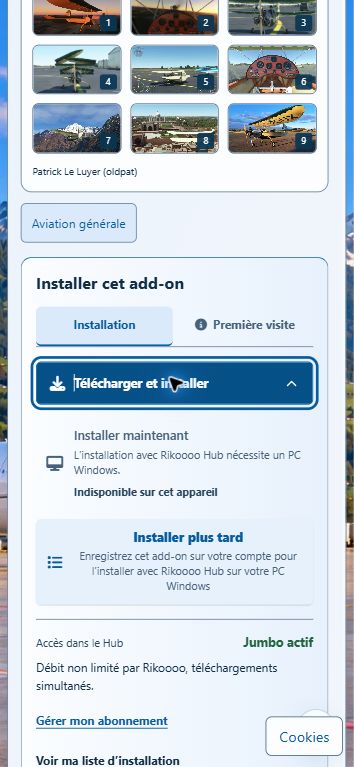
Mobile website view in Chrome, using iPhone emulation. The screenshots use the French interface: “Installer plus tard” means “Install later”. The phone sends the request; it does not download the add-on files.
The message Added to your installation list confirms that the request has been saved. You can view the confirmation captured after the click.
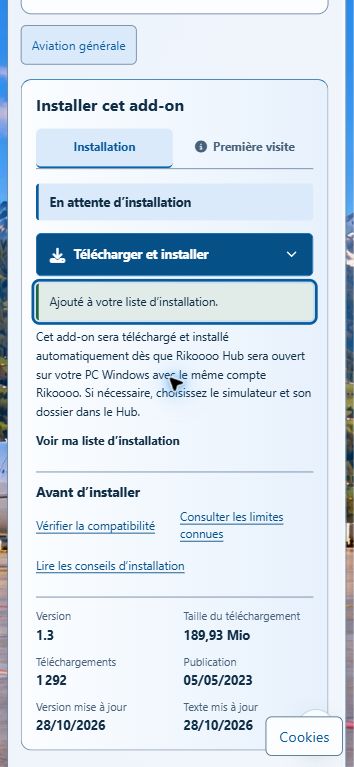
2. Hub takes over on the PC
If your PC is on and Hub is already open, connected to the internet and linked to the same account, it can process the request while you keep browsing on your phone. Installation destinations must be configured under Settings > Installations, and the affected simulators must be closed. Hub then downloads and installs the add-on automatically.
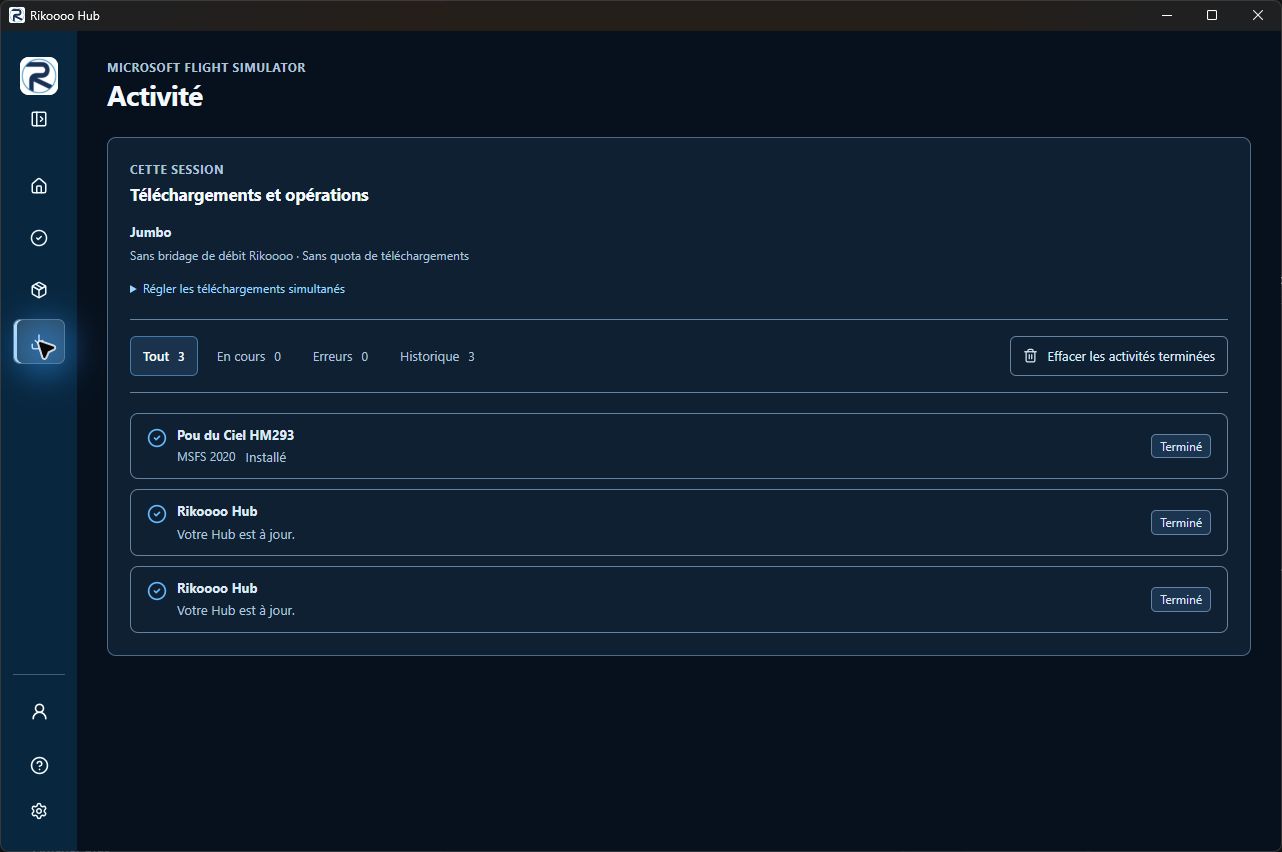
The result of that real request: Pou du Ciel is installed in MSFS 2020. No installation button was used in Hub. This screenshot shows the completed operation; “Installé” means “Installed” and “Terminé” means “Completed”.
If Hub is closed, open it on the PC with the same account so it can retrieve the request. If the add-on is compatible with several of your selected simulators, Hub asks where to install it before starting. A destination choice or another message may therefore require your attention on the PC.
Find or remove a request
On the website, open My library > Rikoooo Hub. While a request is waiting and removal is offered, you can remove it. Follow an operation that has started under Activity in Hub.
Save for later keeps a reading selection; it does not request installation. If a request does not start, check the account, connection, destinations and message in Hub before adding it again.